 SavvyCal Docs
Group scheduling mode
Group scheduling mode allows accepting more than one scheduler for each time slot on your scheduling links. This comes in handy if you are offering things like group coaching sessions, webinars, and office hours. In this guide, we'll walk you through how group scheduling works.
Creating a group scheduling link
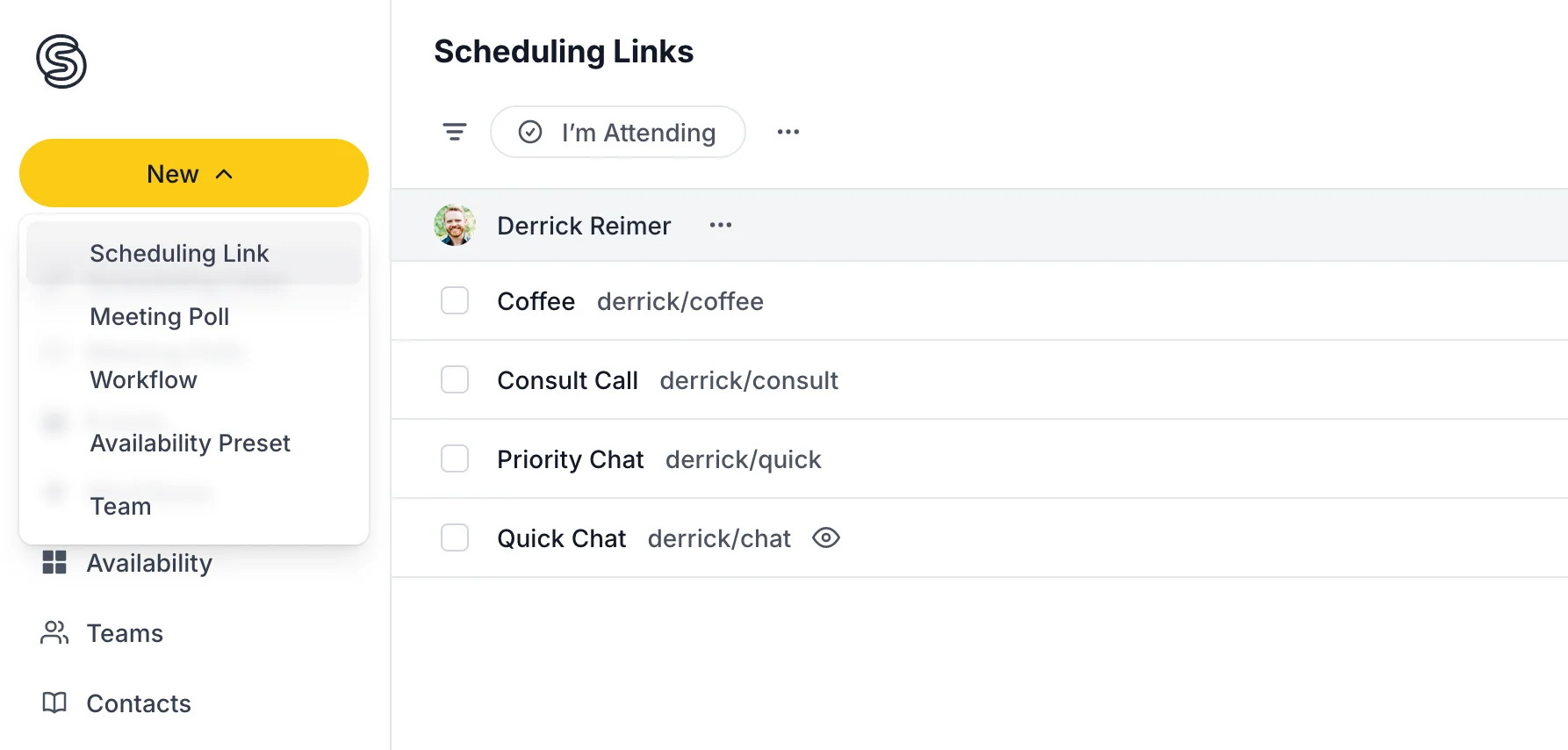
To get started, create a scheduling link by clicking the New menu in the sidebar and choosing New scheduling link.
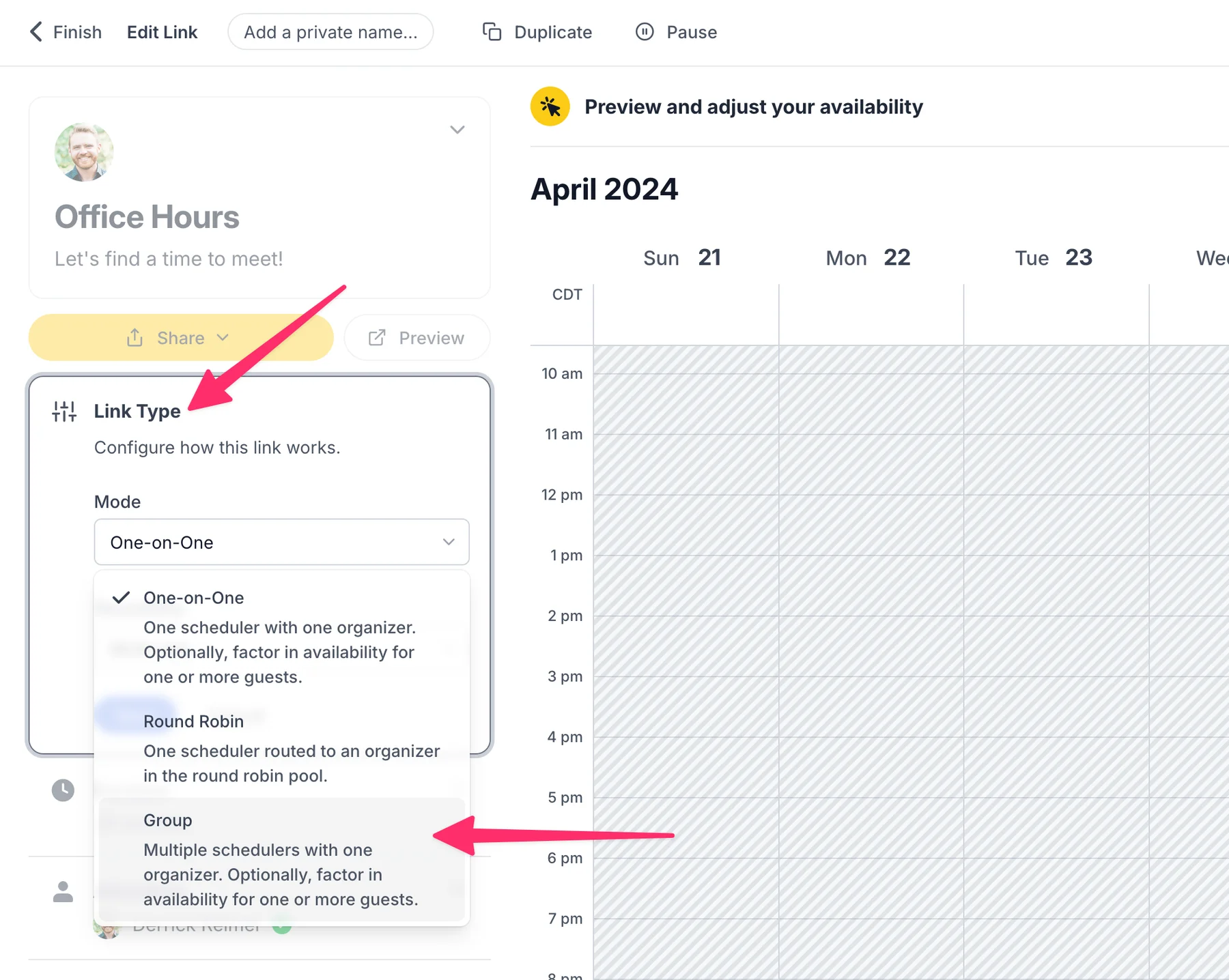
Then, choose Group as the link type. You can't change a link's type after it's created.
You can then configure the maximum number of schedulers allowed to book the same time slot using the Maximum group size setting in the Link Type section.
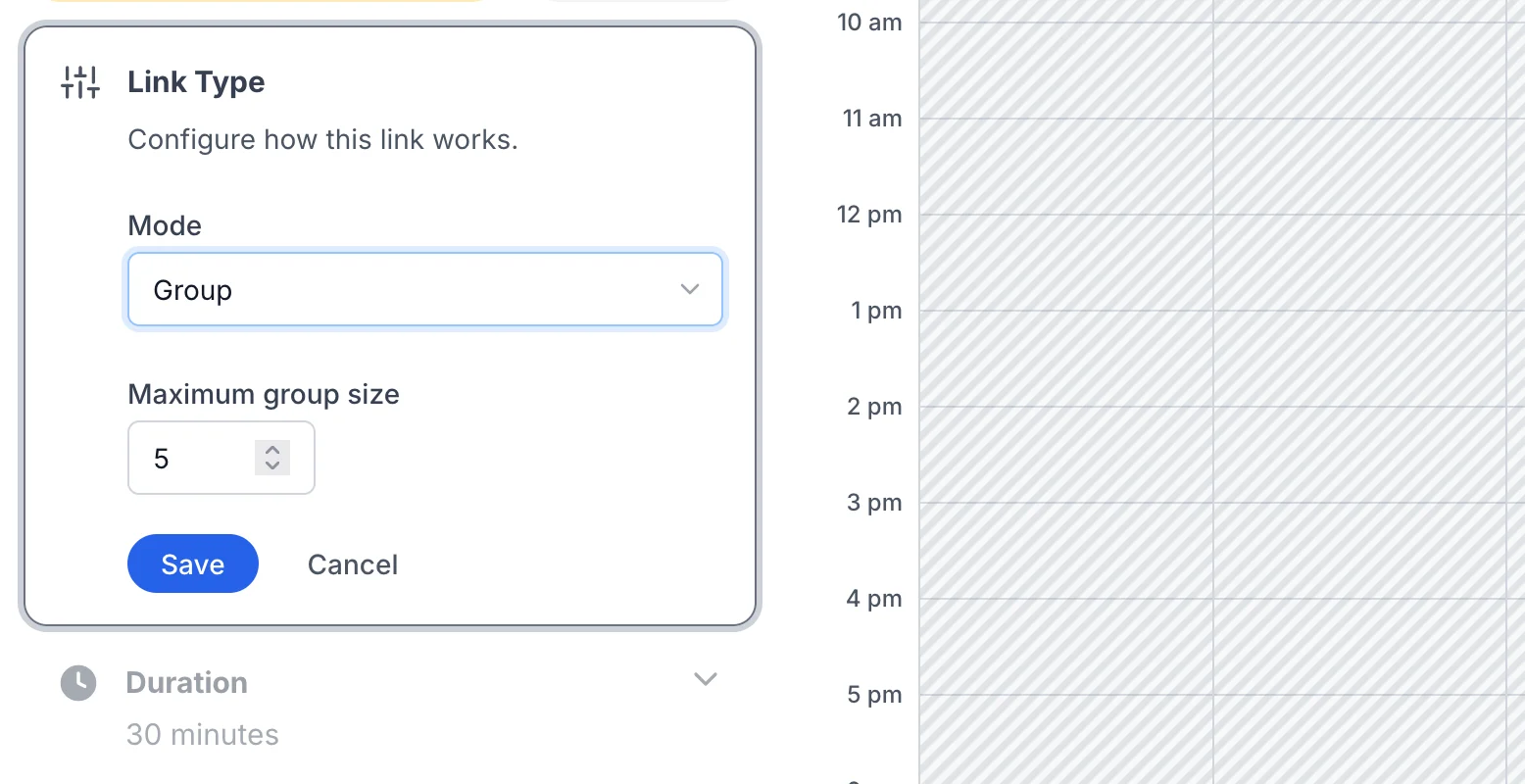
Finally, click Save to save your changes. That's it!
We'll notify the link organizer anytime someone books a time on a new (or existing) time slot.
- If an event already exists and has not reached the maximum group size, we'll present that time slot as open and automatically add the person to the existing event.
- If the event has reached the maximum number of attendees, it will be shown as busy on your scheduling link.
- If all the schedulers on a group event cancel, we'll automatically cancel the underlying calendar event.
Still have a question? Contact support.