 SavvyCal Docs
How organizations work
Organizations represent a SavvyCal billing subscription. An organization can have one or more members and as many teams as you need to organize your account.
Creating an organization
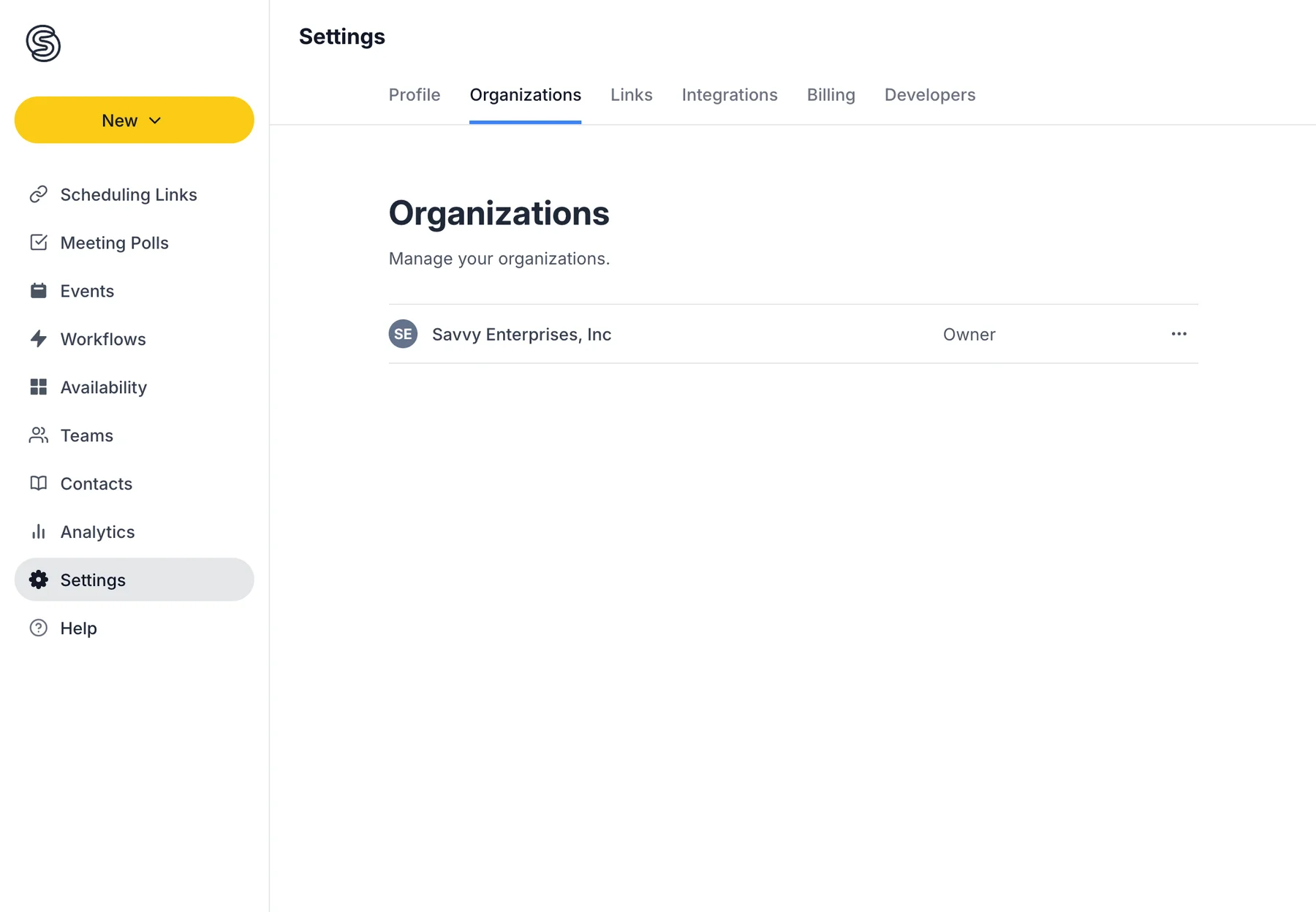
When you create a paid subscription in SavvyCal, we automatically spin up an organization for you. After upgrading, you can access your organization settings from the Settings > Billing page.
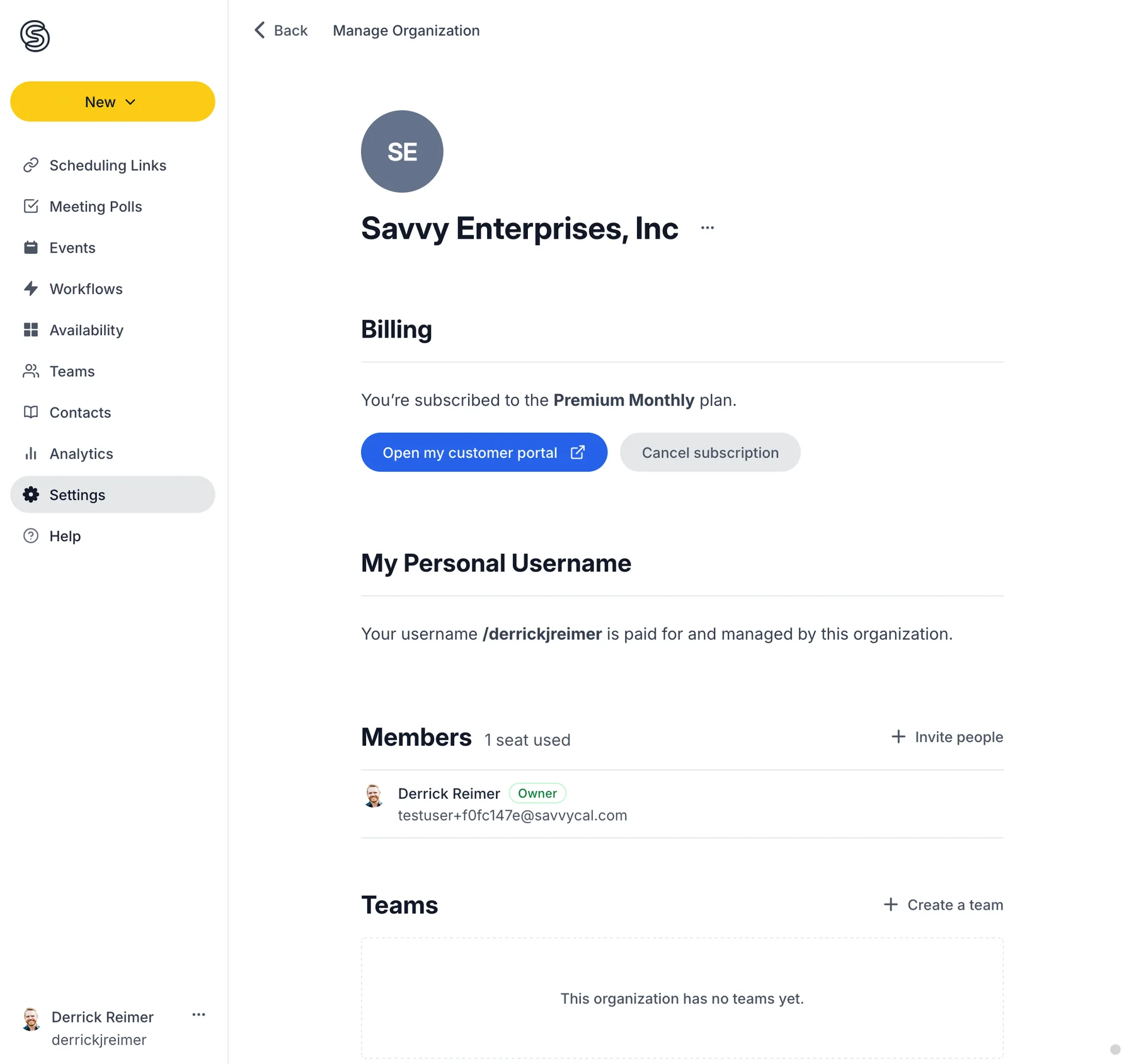
On that page, you'll find a link to your billing portal, the list of members, and the list of teams that belong to the organization.
Inviting people to an organization
To invite other colleagues from your company, click + Invite people under the Members section.
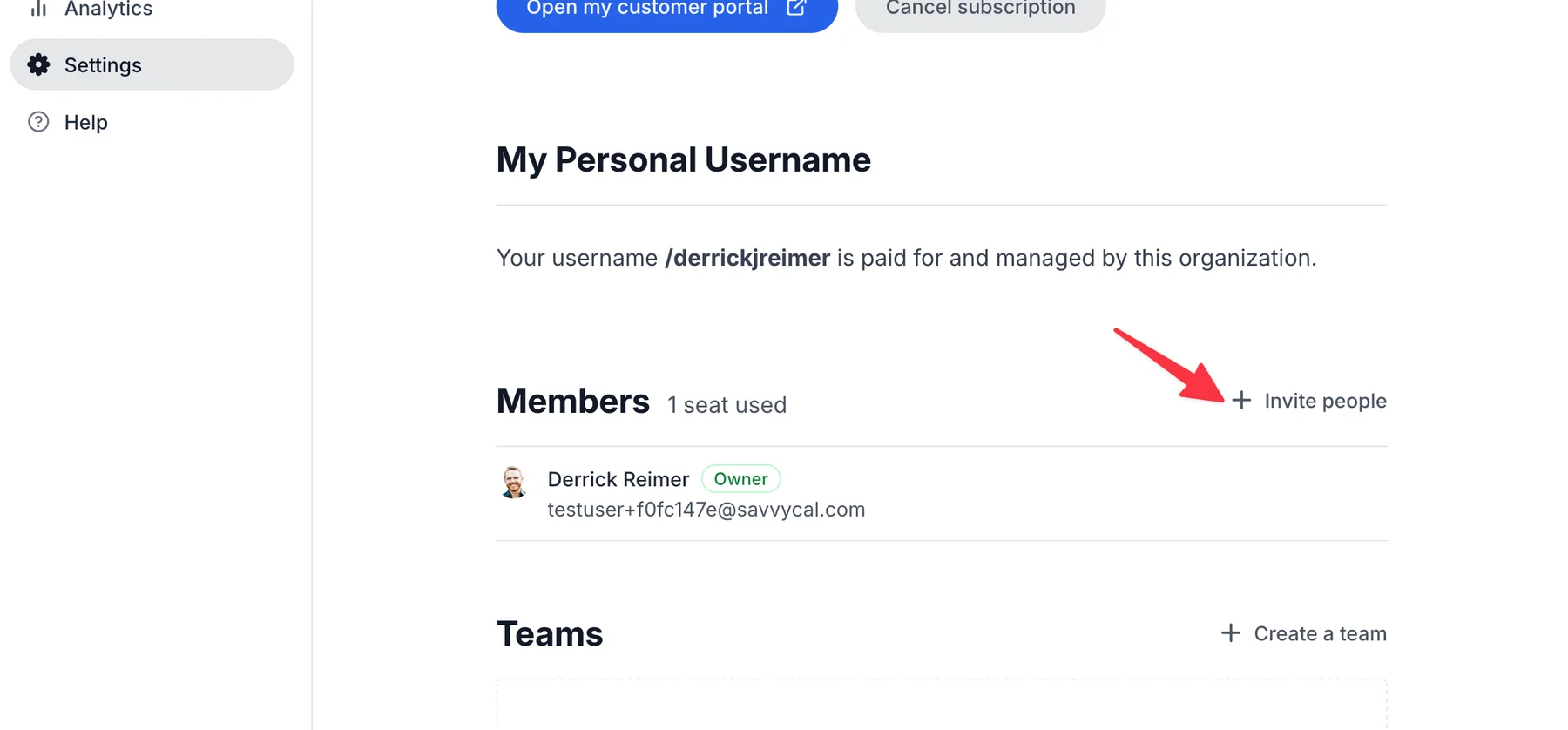
Once they join your organization, we'll automatically adjust your subscription to reflect the number of seats in use.
Creating teams
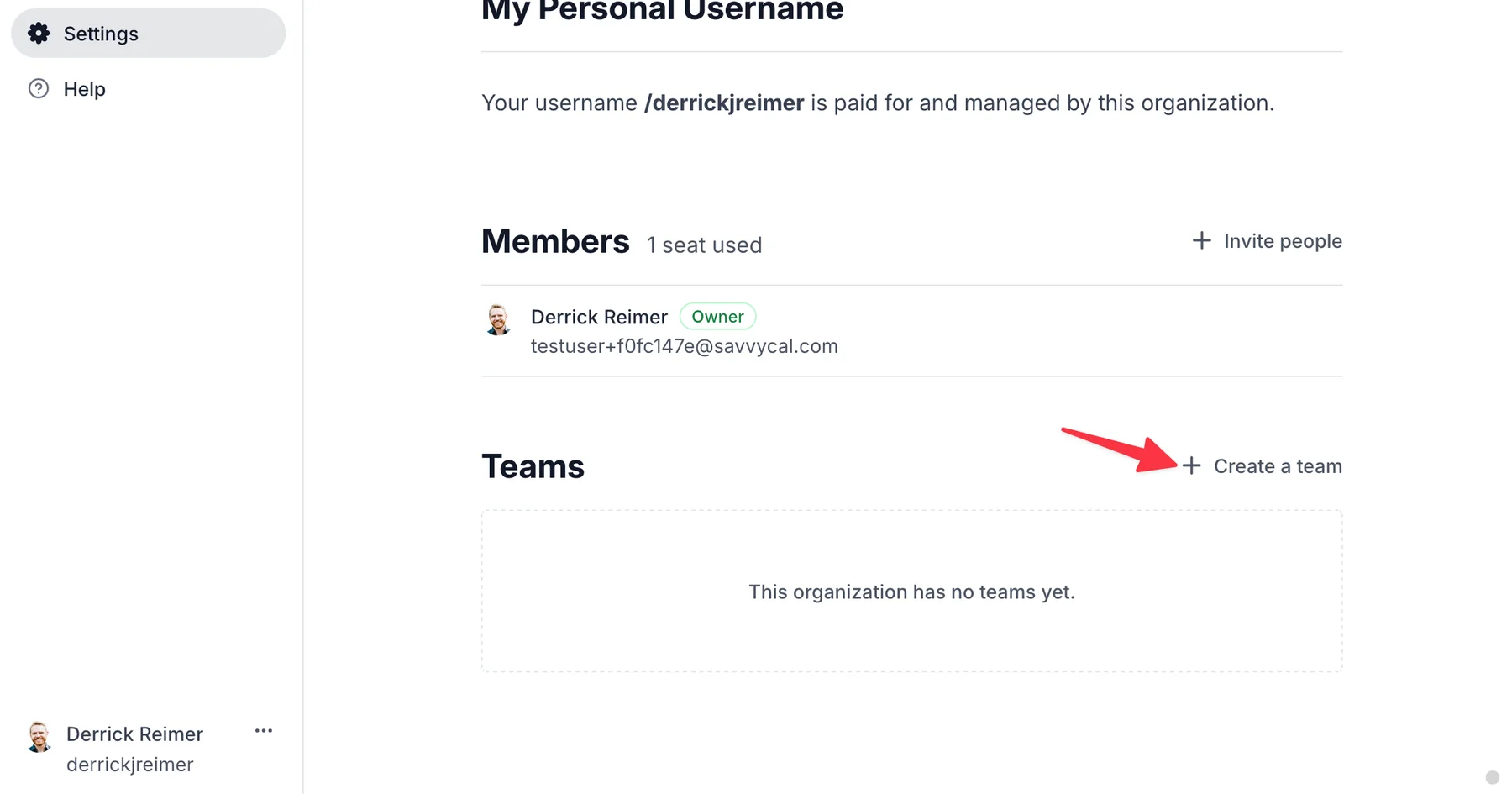
To create a team under your organization, click + Create a team under the Teams section.
Renaming an organization
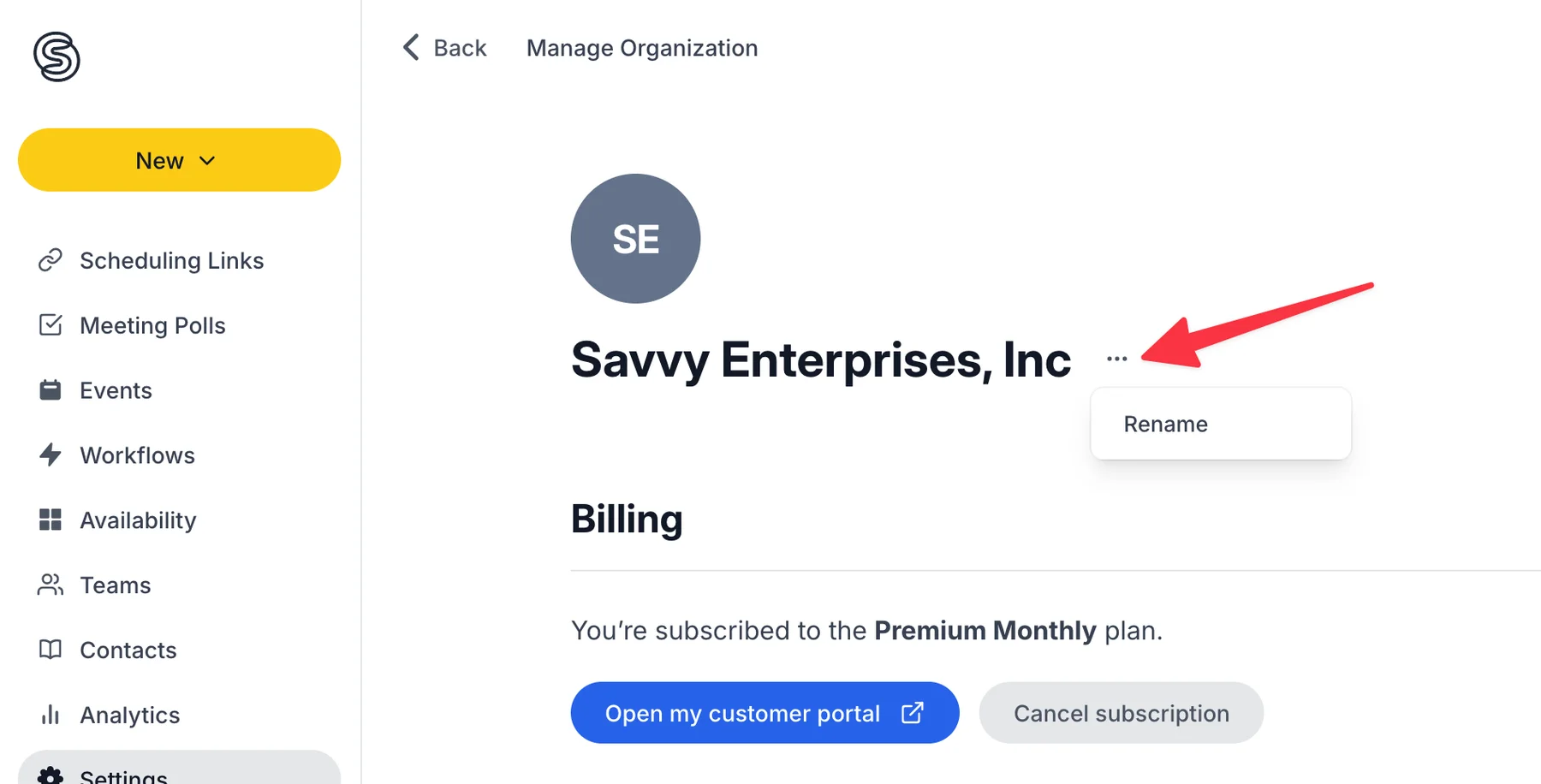
By default, we name your organization after you (the owner) when you subscribe. You can update it to match the name of your company by clicking Rename below the list of members.
FAQs
How is an organization different from a team?
An organization sits one level above teams — organizations can "own" one or more teams. How you choose to structure your teams depends on your use case! Some customers end up with just one team named after their company. For example:
- savvycal.com/my-company
Others have teams set up for various departments to differentiate roles within the organization. For example:
- savvycal.com/my-company-sales
- savvycal.com/my-company-support
Still have a question? Contact support.