 SavvyCal Docs
Integrating with Close CRM
The SavvyCal + Close CRM integration allows you to automatically send lead information to your Close account anytime someone books a meeting.
We'll create a custom activity type called SavvyCal in your Close account. When someone books via a scheduling link with the integration enabled, we'll create a lead/contact (if one doesn't already exist for the scheduler) and record a custom activity with various metadata about the scheduled event.
Follow the instructions below to get your Close account connected to SavvyCal!
Connecting your Close account
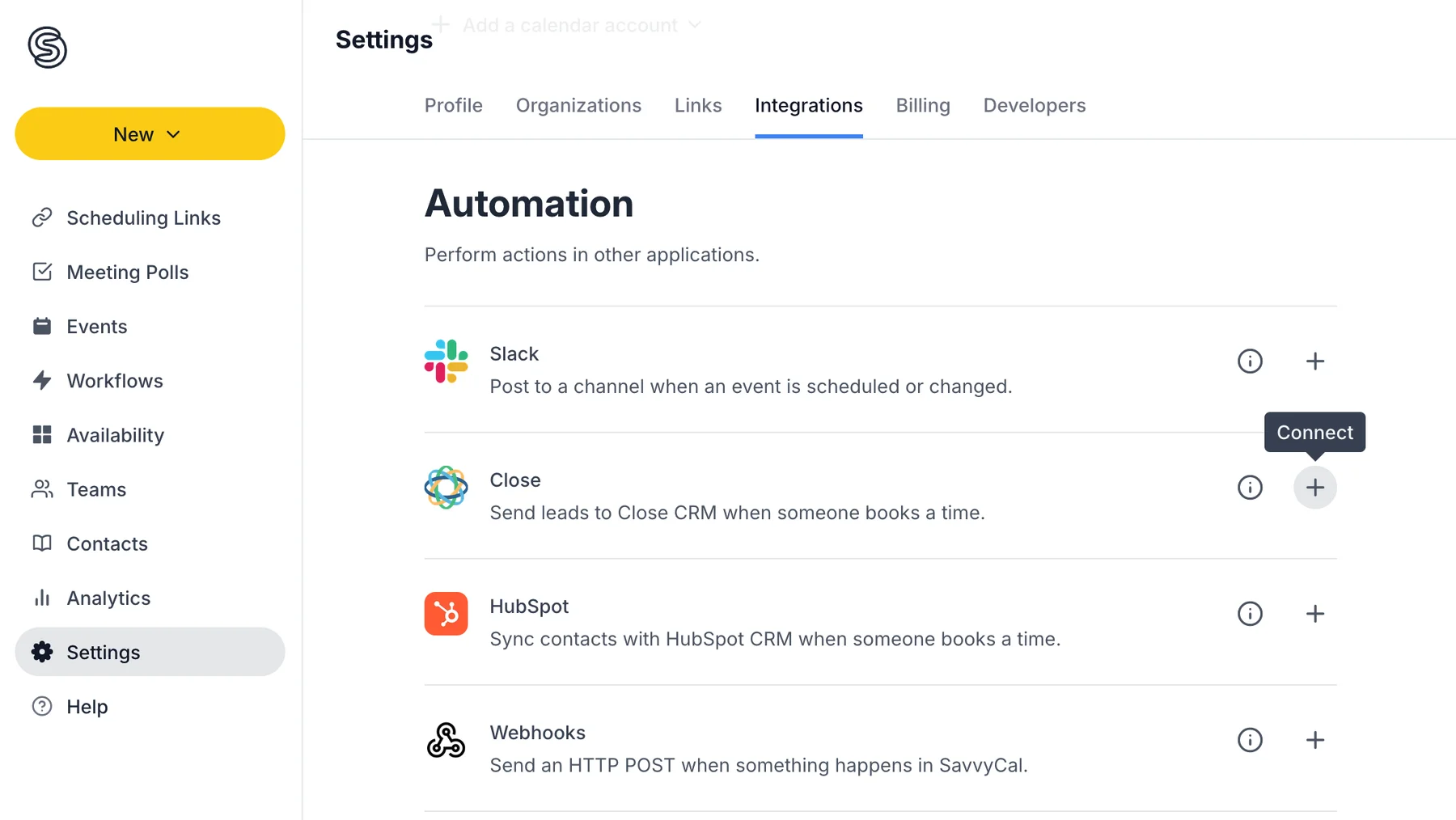
In your SavvyCal account, browse to Integrations and click the "+" button on the Close app:
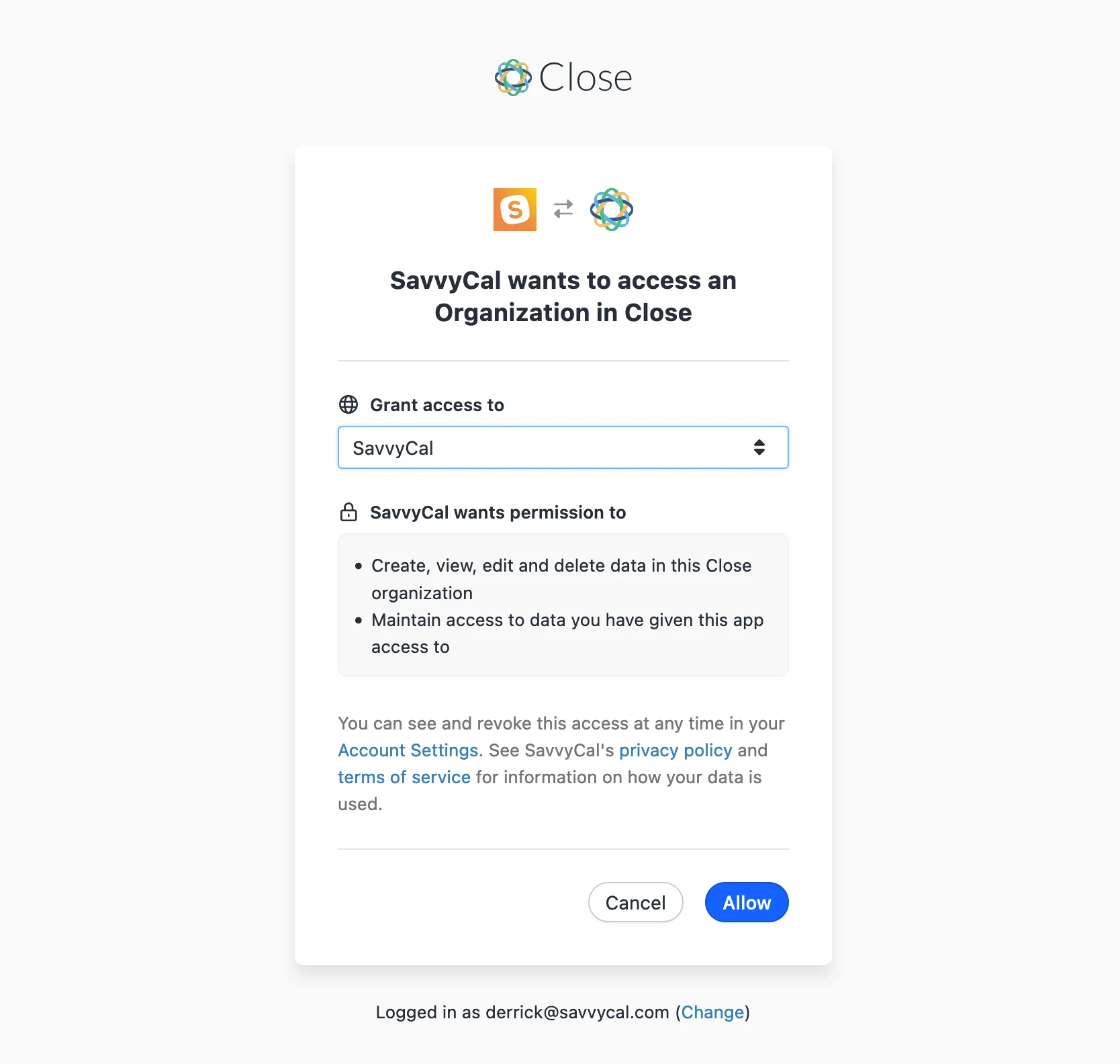
You'll be redirected to Close.com. Follow the prompt to grant SavvyCal access to your Close organization:
Your account is now linked! 🎉 Next, you'll learn how to enable sending scheduler data over to your Close account when specific scheduling links are used.

Enabling Close on your scheduling links
SavvyCal does not assume you want to sync every meeting with your Close account. Instead, we give you the power to choose which specific SavvyCal scheduling links you want to sync with Close.
To enable Close sync for a scheduling link:
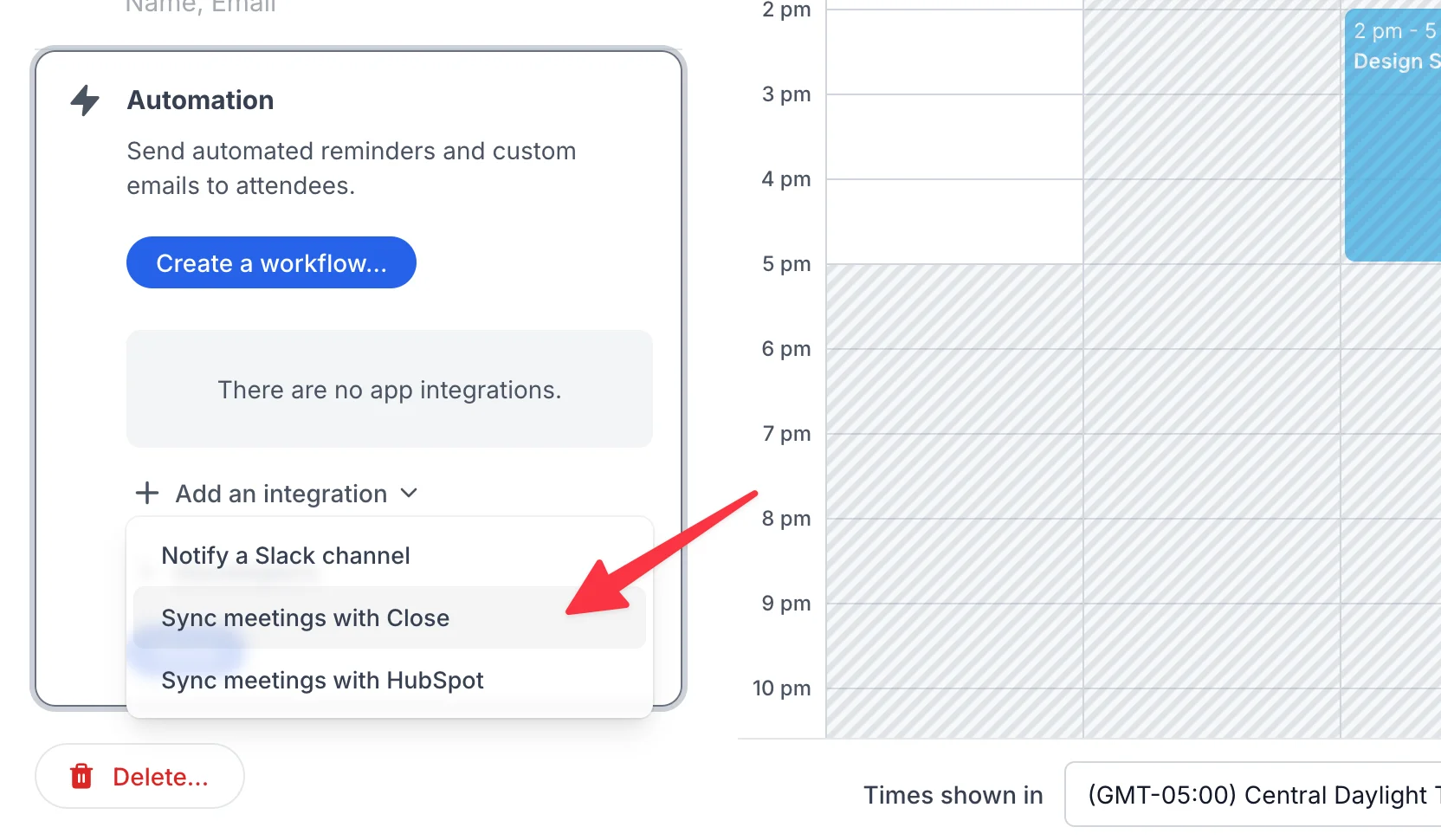
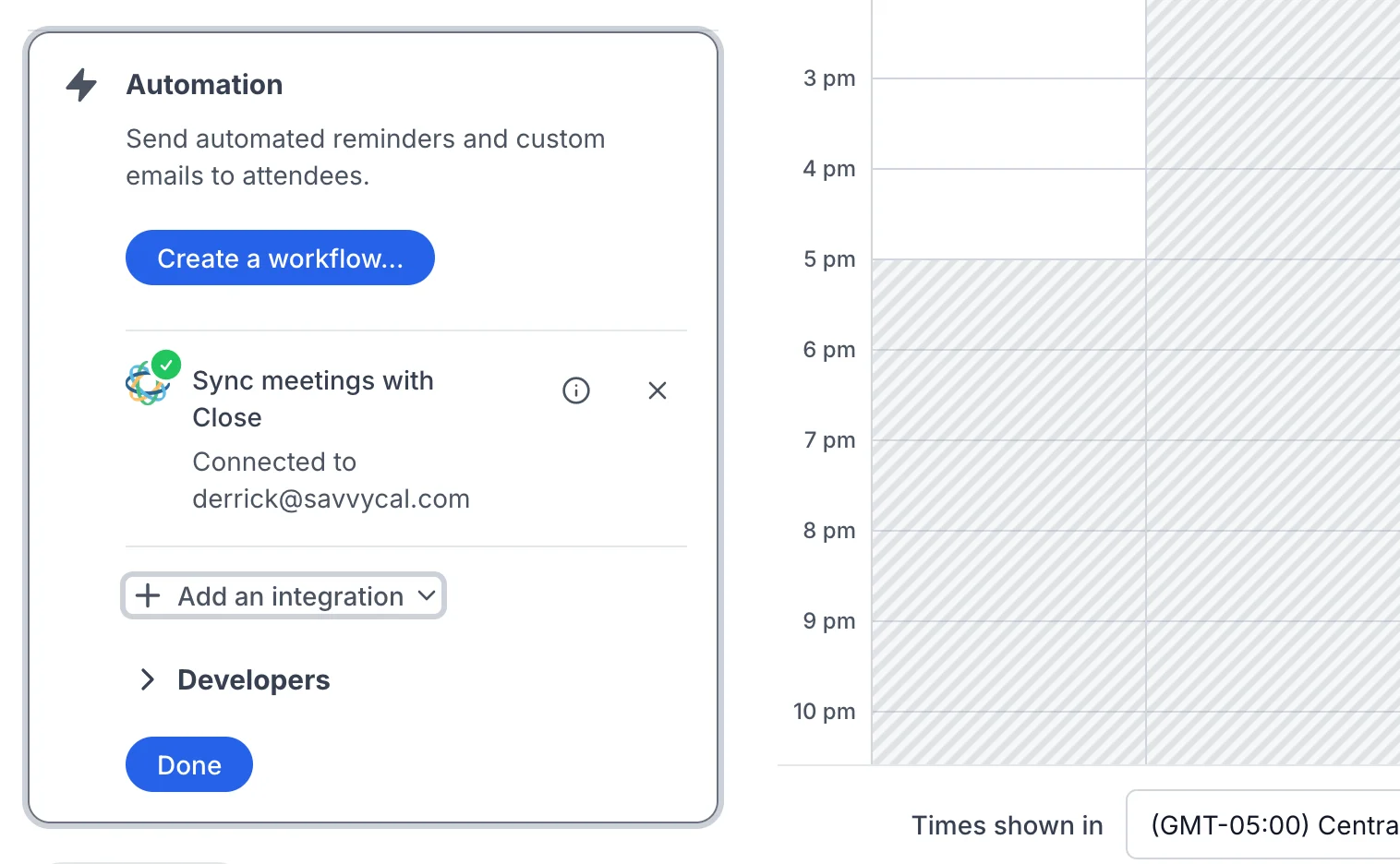
- Navigate to Automation
- Click "Add an integration"
- Click "Close.com"
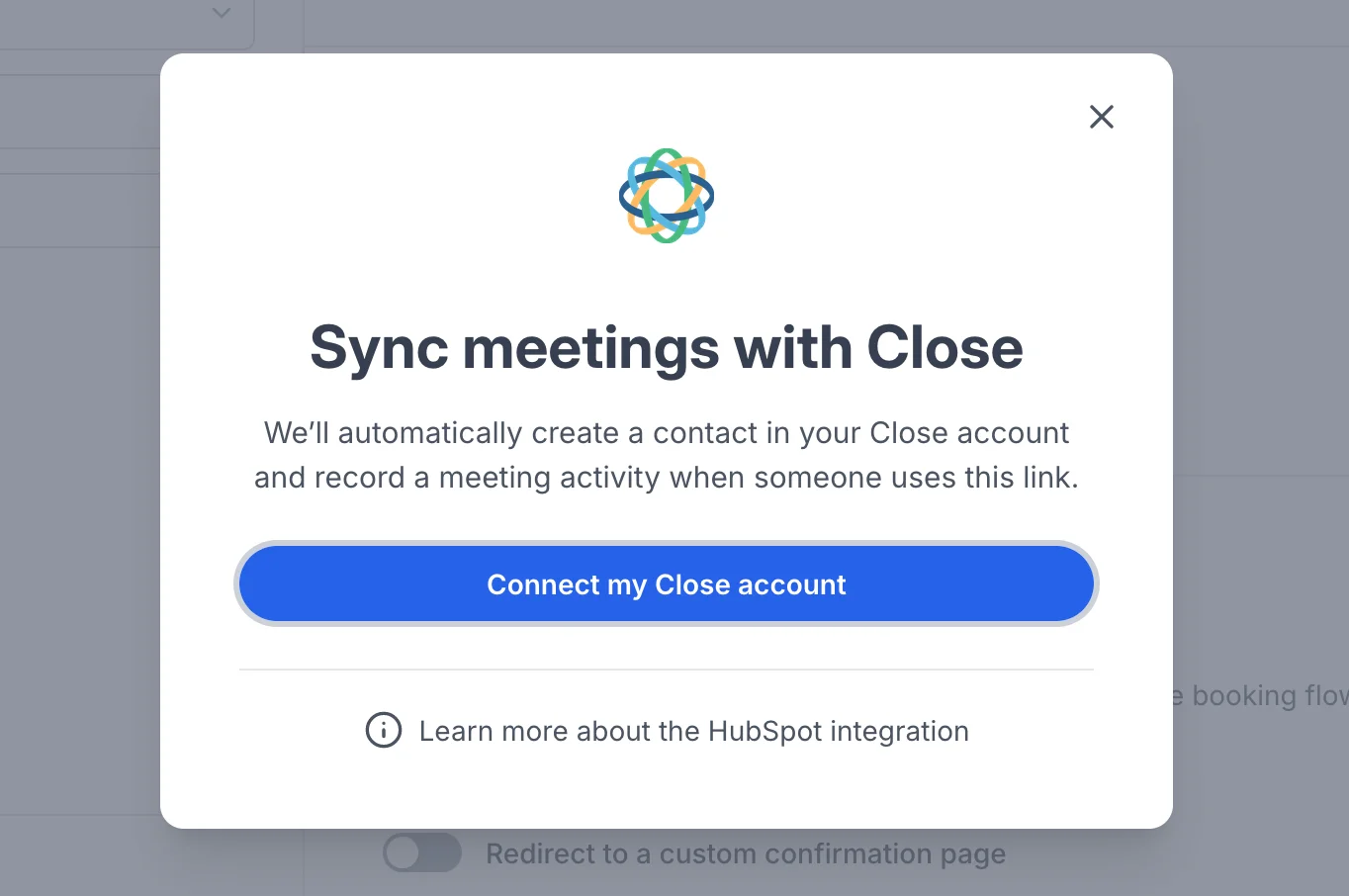
Confirmation step
That's it! Moving forward, we will create contacts and record meeting activities any time this link is used. Repeat this process, toggling on the feature for any other links you want to integrate with Close.
Viewing SavvyCal activity in Close
The links that you have integrated with Close will send data each time a meeting is scheduled. You should find a record for each meeting scheduler listed in Close under your Contacts, and opening those contacts should show a SavvyCal Custom Activity on their feed, including information about the meeting.
Note: Custom activities will only appear in the contact timeline if you are on a Close plan level that allows Custom Activities (Basic or higher) and you have not reached your limit for custom activities.
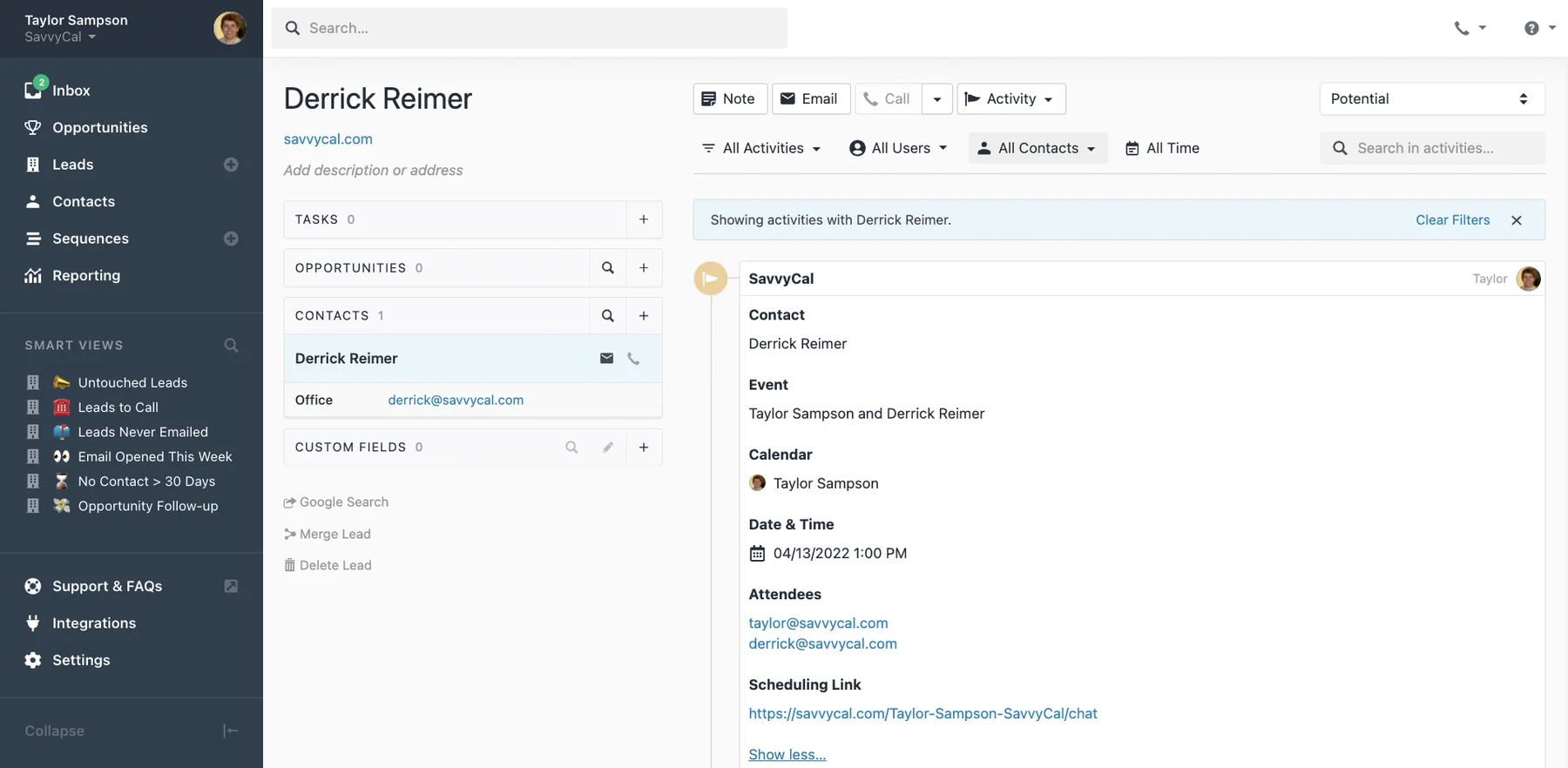
When we create a lead in your Close account, its description reads "Created via SavvyCal".
Still have a question? Contact support.