 SavvyCal Docs
Integrating with Slack
The SavvyCal Slack integration allows you to connect one (or more) Slack channels in your workspace and post messages there anytime an event is scheduled, approved, rescheduled, or canceled. In this guide, we'll walk you through how to connect your Slack workspace and how to configure a scheduling link to notify a Slack channel.
Connecting your Slack workspace
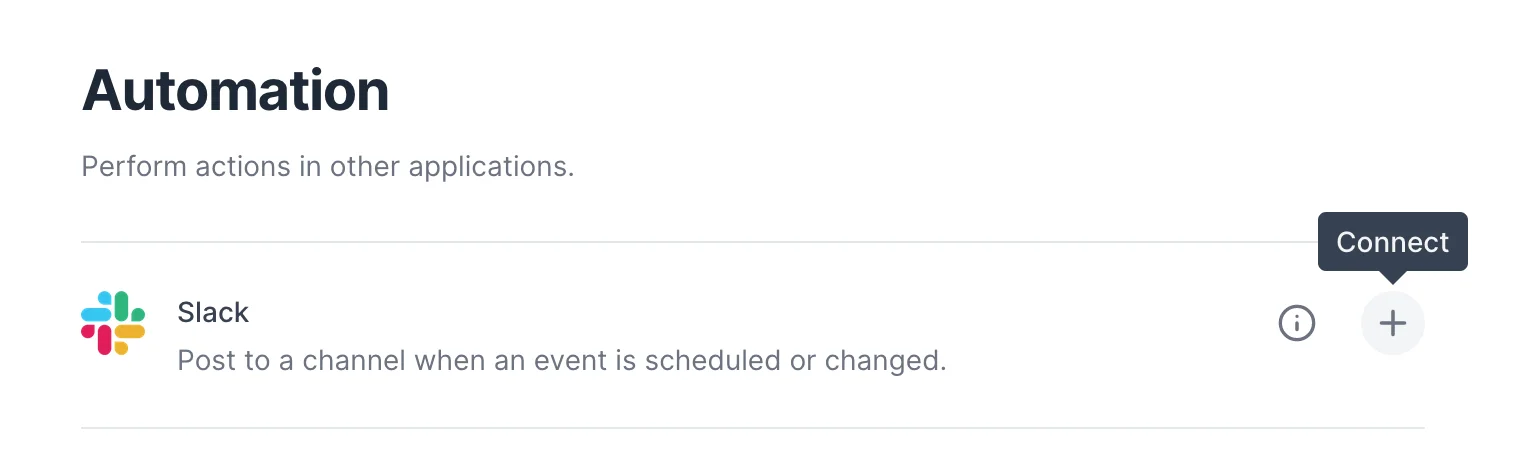
To connect Slack to your SavvyCal account, head to your Integrations page and click "Connect" on Slack:
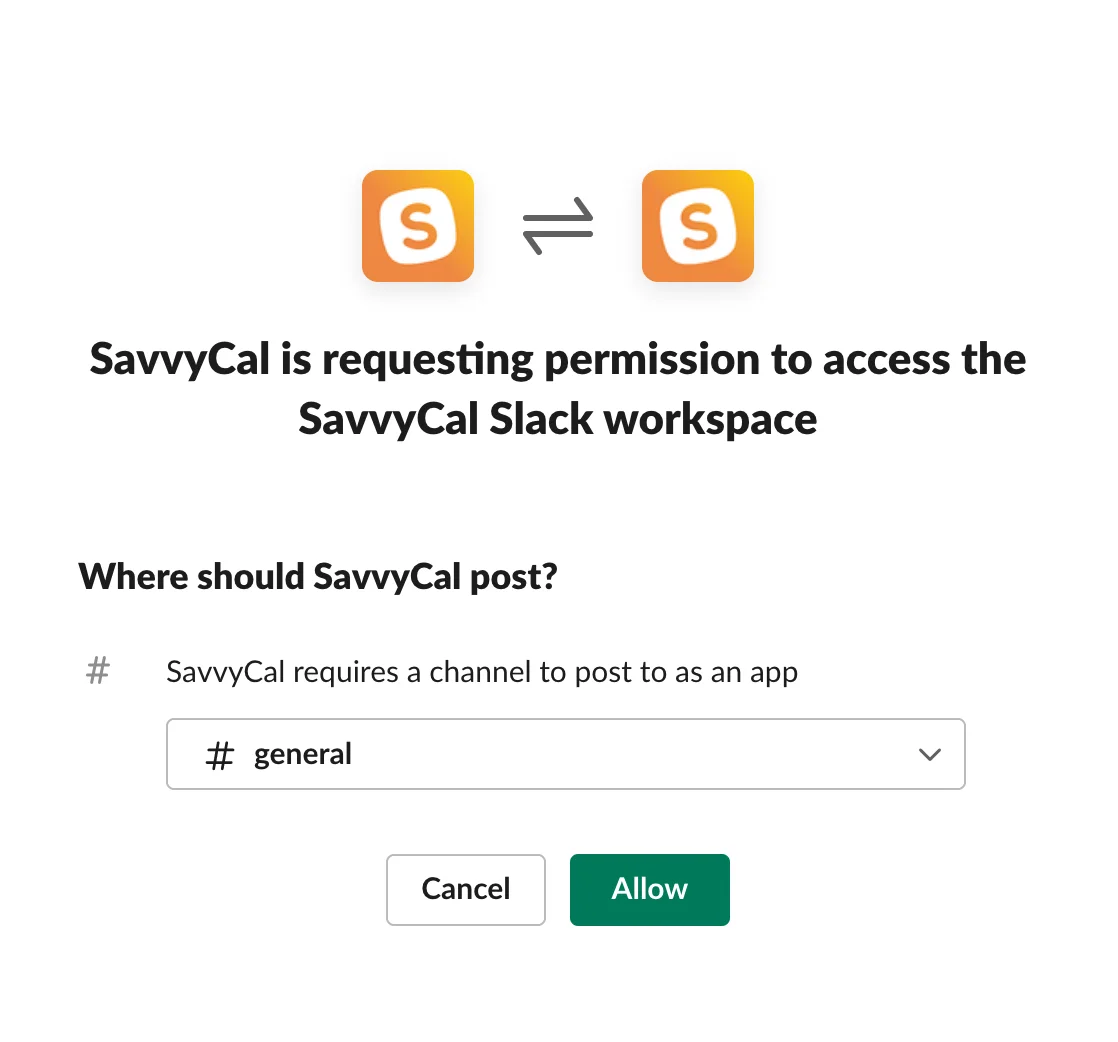
In the authorization popup, select the channel you'd like to connect.
You should now see your newly connected channel on the integrations page in SavvyCal!
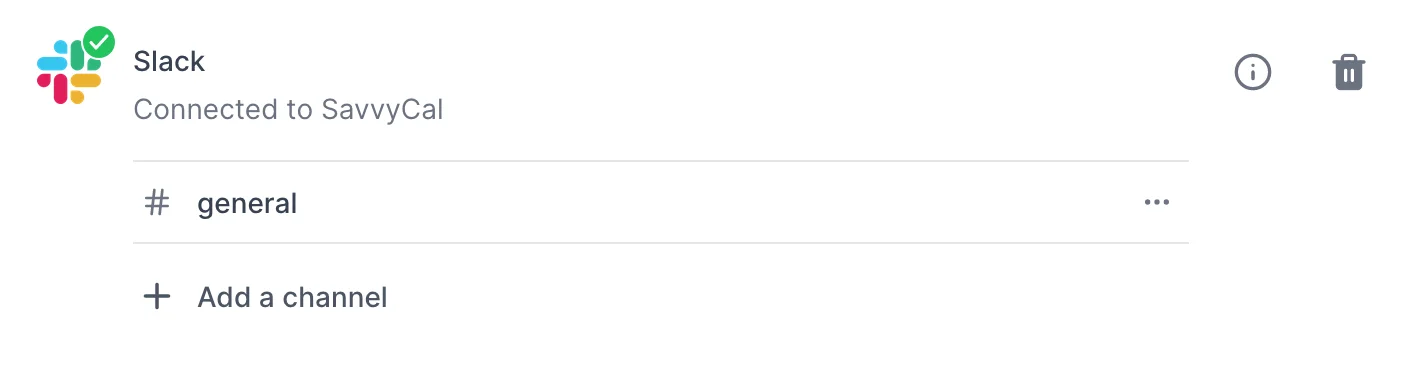
Now that you have a channel connected, you can configure specific links to post there.
Configuring a scheduling link to notify Slack
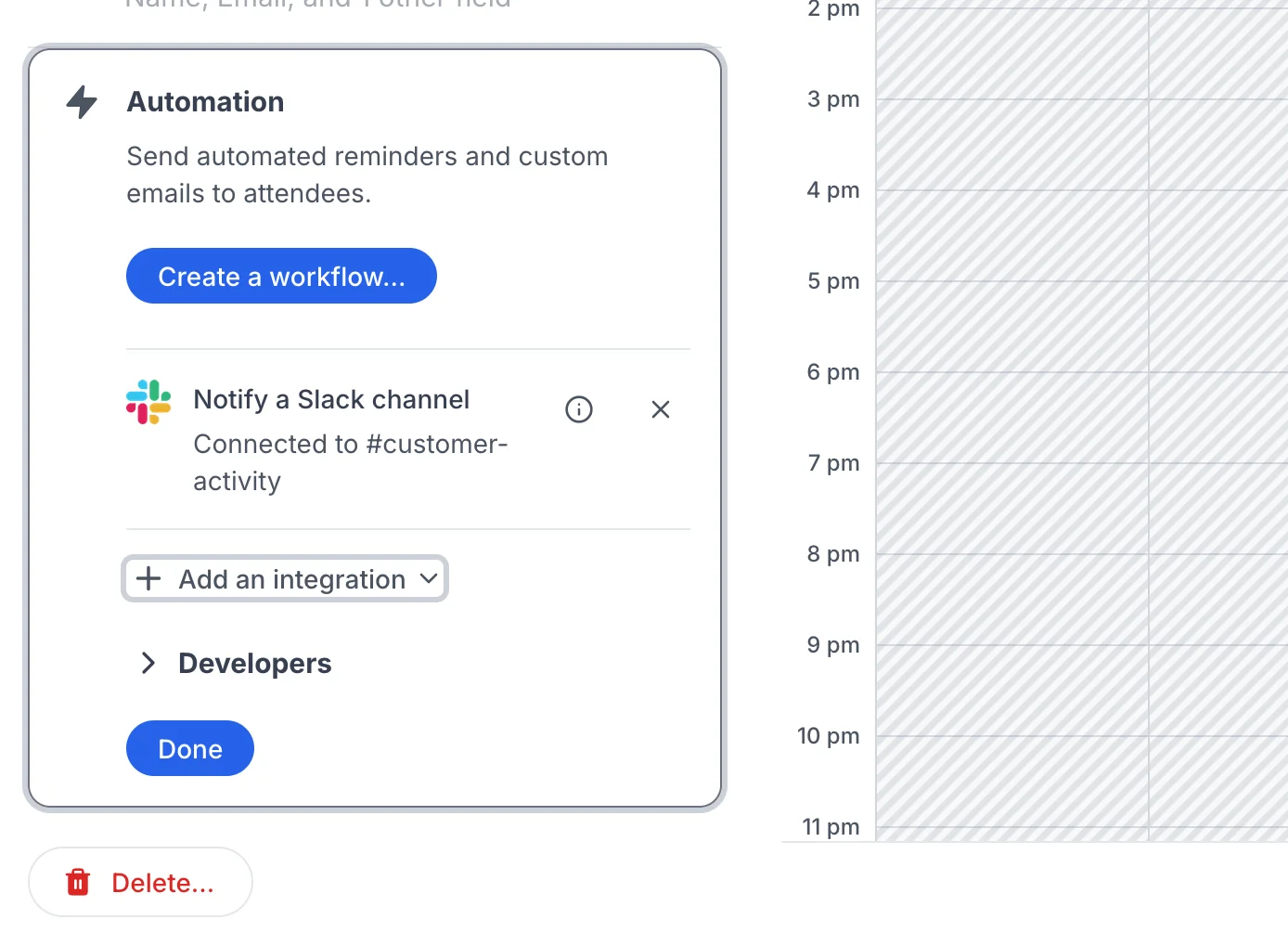
Navigate to the link editor for your Scheduling Link, click the Automation section, and click Slack under the "Add an integration" menu.
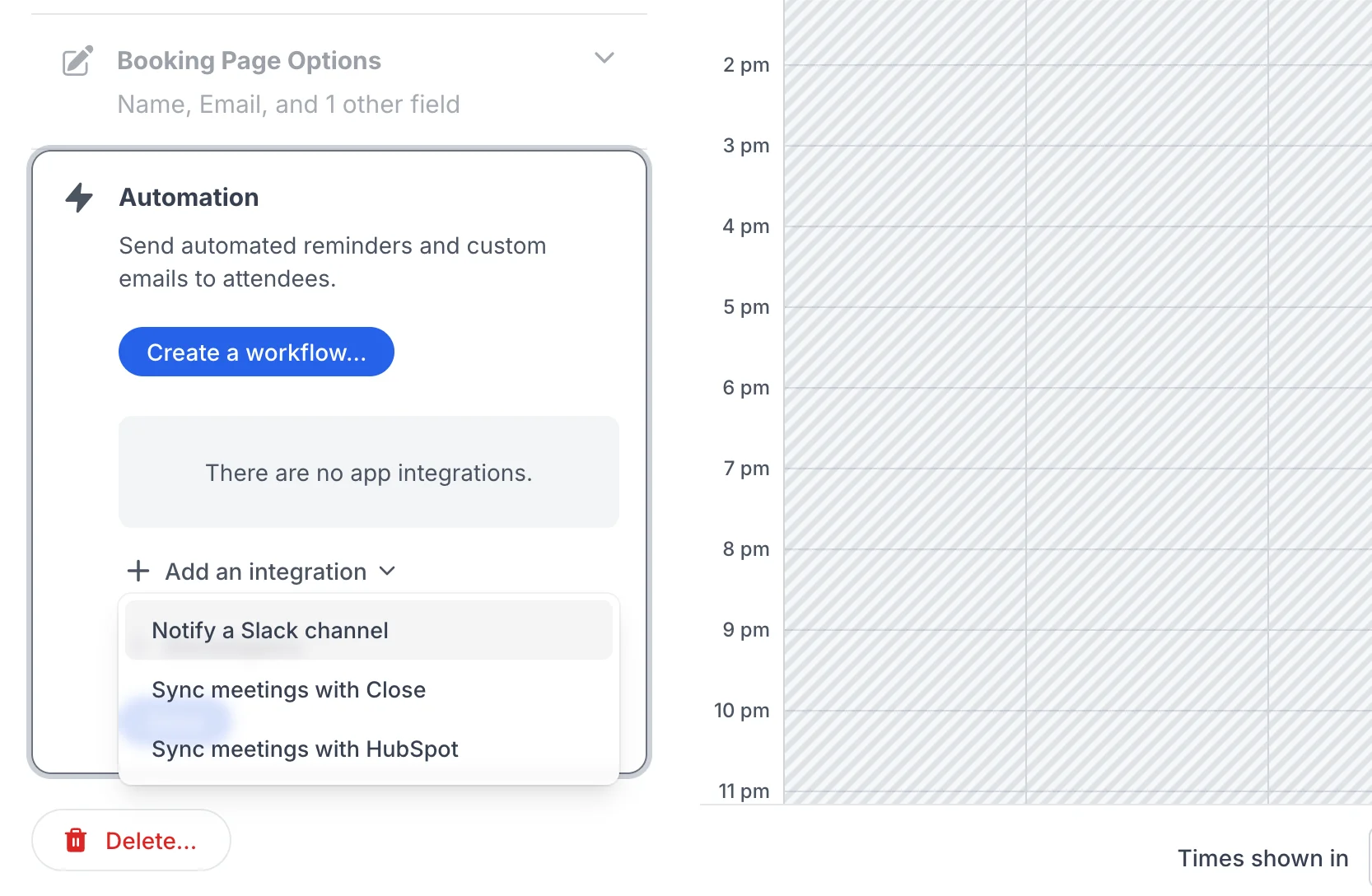
Select the channel you wish to notify and click "Notify this channel" to confirm.
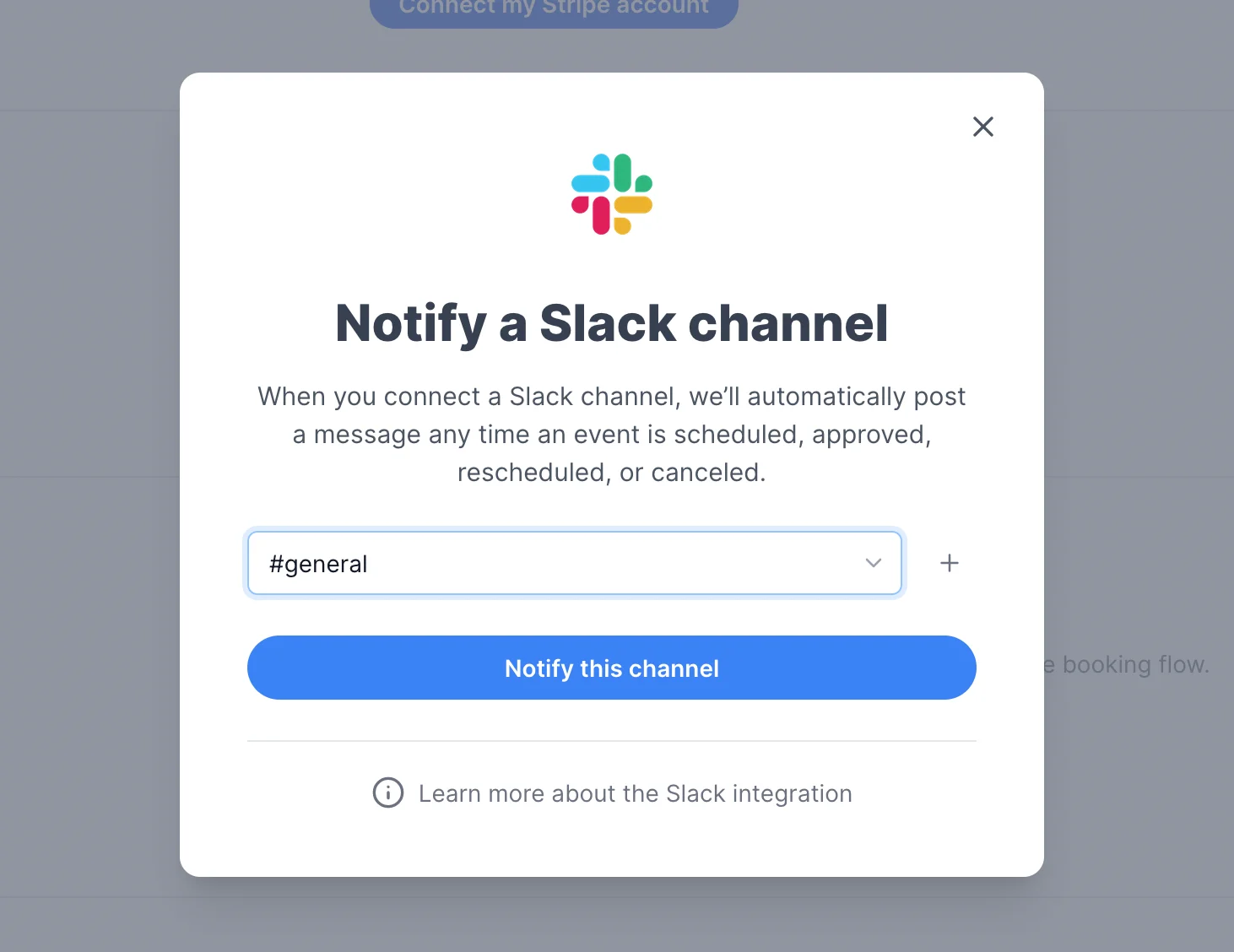
That's it! We'll now post to your Slack channel when someone books with that scheduling link, and when you approve, reschedule, or cancel one of its events. Events that need approval post as Requested when they're booked.
Still have a question? Contact support.