 SavvyCal Docs
Sharing availability with people outside your team
Availability sharing is a powerful way to factor in someone's availability when inviting them to attend a meeting. If you'd like to add an external contact to a link, you can accomplish this by inviting that person to share their availability and adding them to your Contacts.
You need a paid SavvyCal account to send a share request. The person sharing their availability with you does not.
In this article, we'll walk you through:
- When to use Teams vs. Contacts
- Sending a share request via the Contacts page
- Receiving a share request
When to use Teams vs. Contacts
Both Teams and Contact connections allow you to share availability with others.
Teams are best when:
- You are members of the same organization
- You want to grant them paid access to create their own SavvyCal links
Learn about setting up a team.
Contacts are the way to go when:
- You are not members of the same organization
- You do not wish to pay for the other person's SavvyCal membership
Anyone can share their availability with other SavvyCal users and be invited as a guest on scheduling links for free. But, users will need a paid account in order to do the following:
- Create their own scheduling links
- Be assigned the organizer of someone else's scheduling link, or
- Participate in a round-robin link
Sending a share request via the Contacts page
You can send a request to share availability from the Contacts page. Click Contacts in the left sidebar and then click the Add contact button in the upper right.
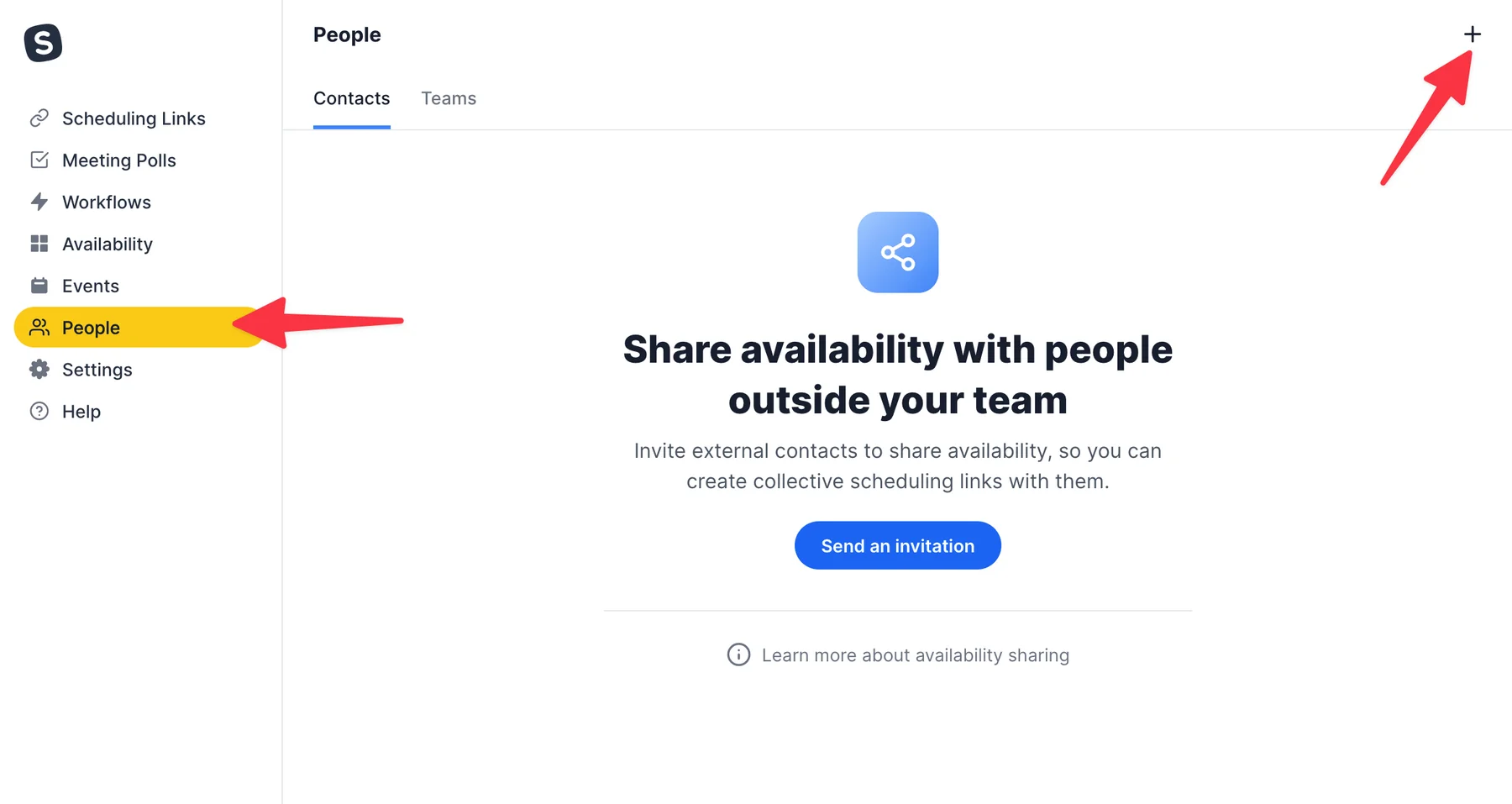
From there, enter their email address and turn on Invite to share availability.
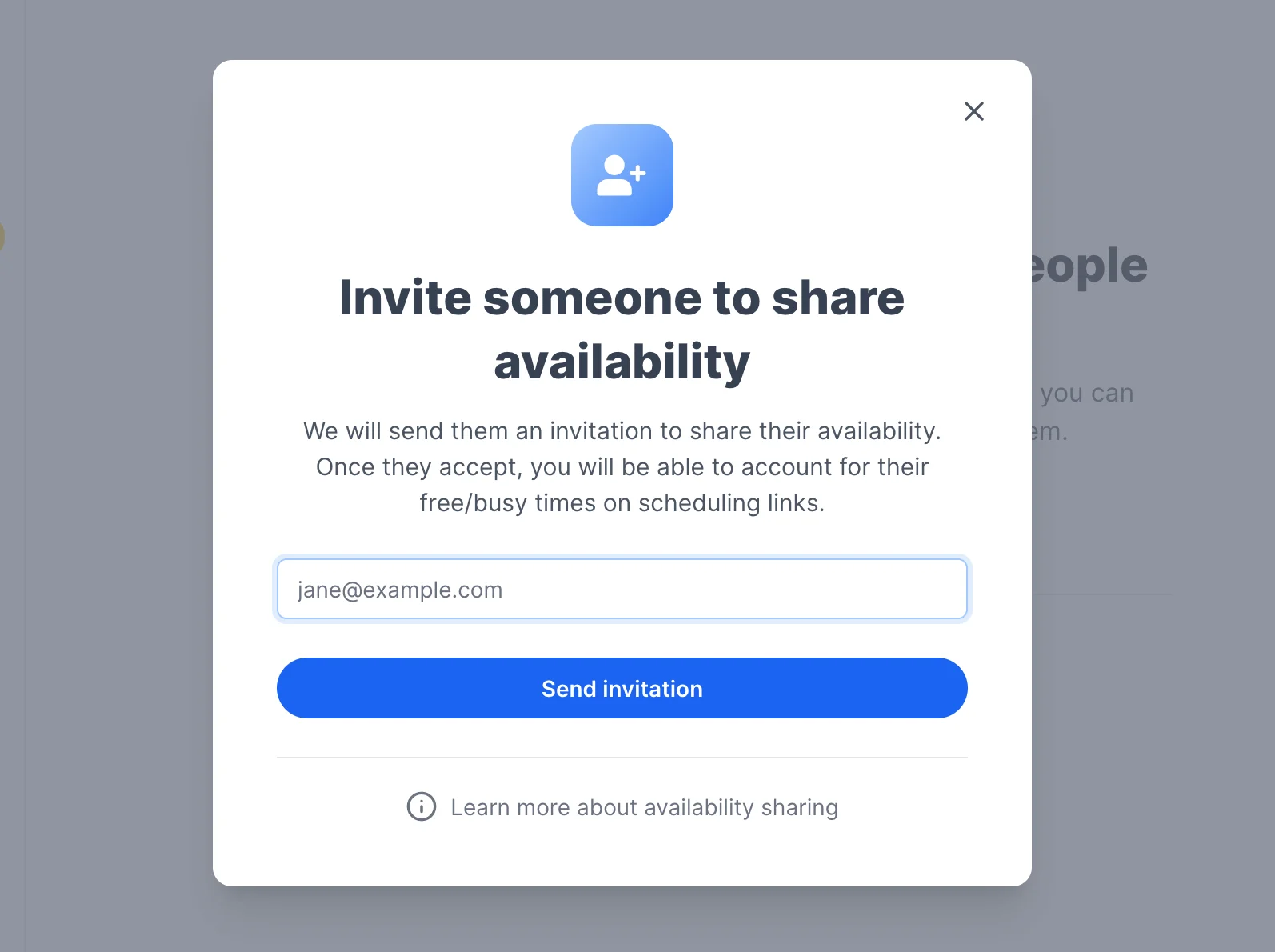
We'll send them an invitation and let you know with an email notification as soon as they accept.
Receiving a share request
When you invite someone to share availability, they will receive an email like this:
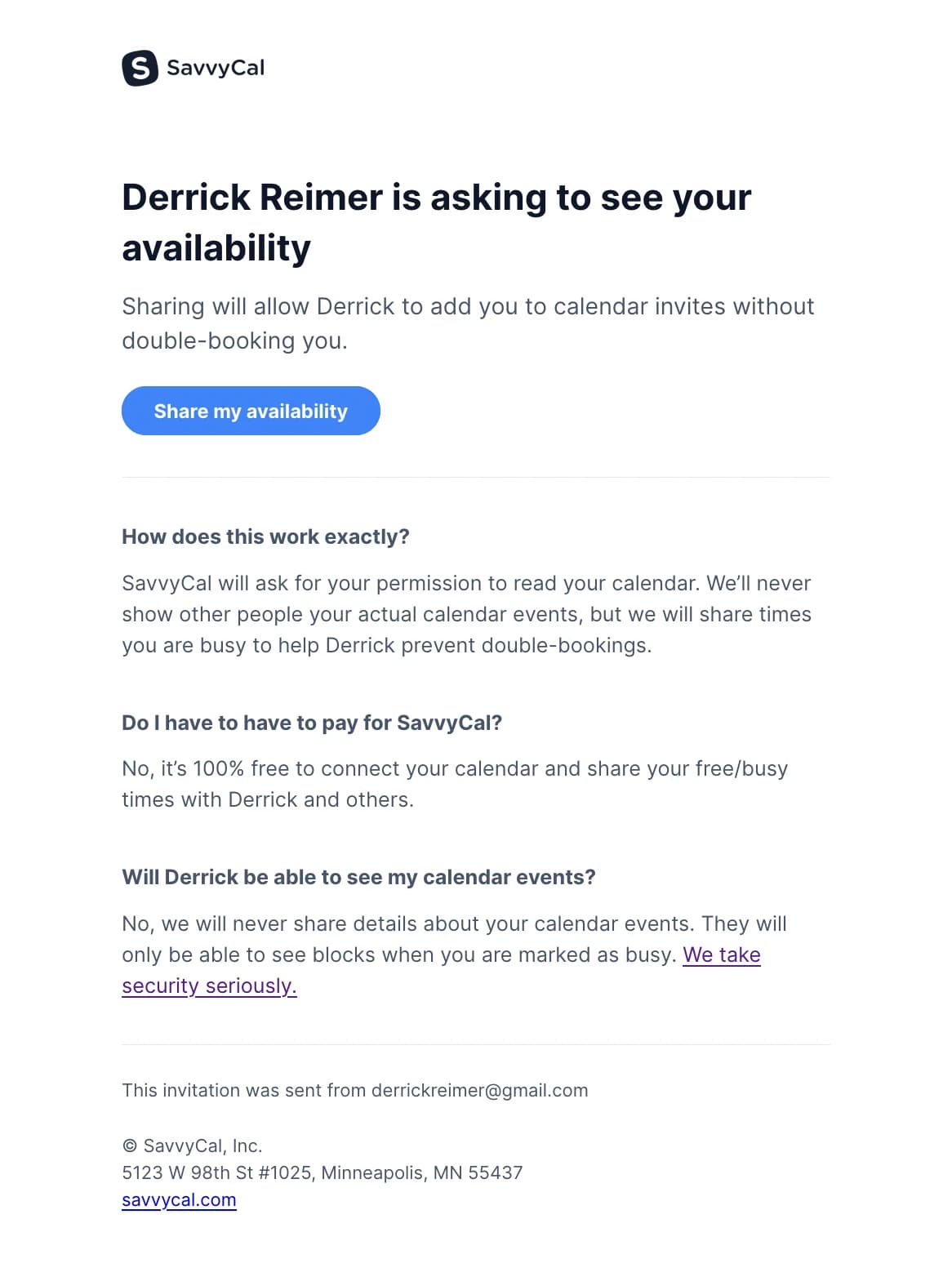
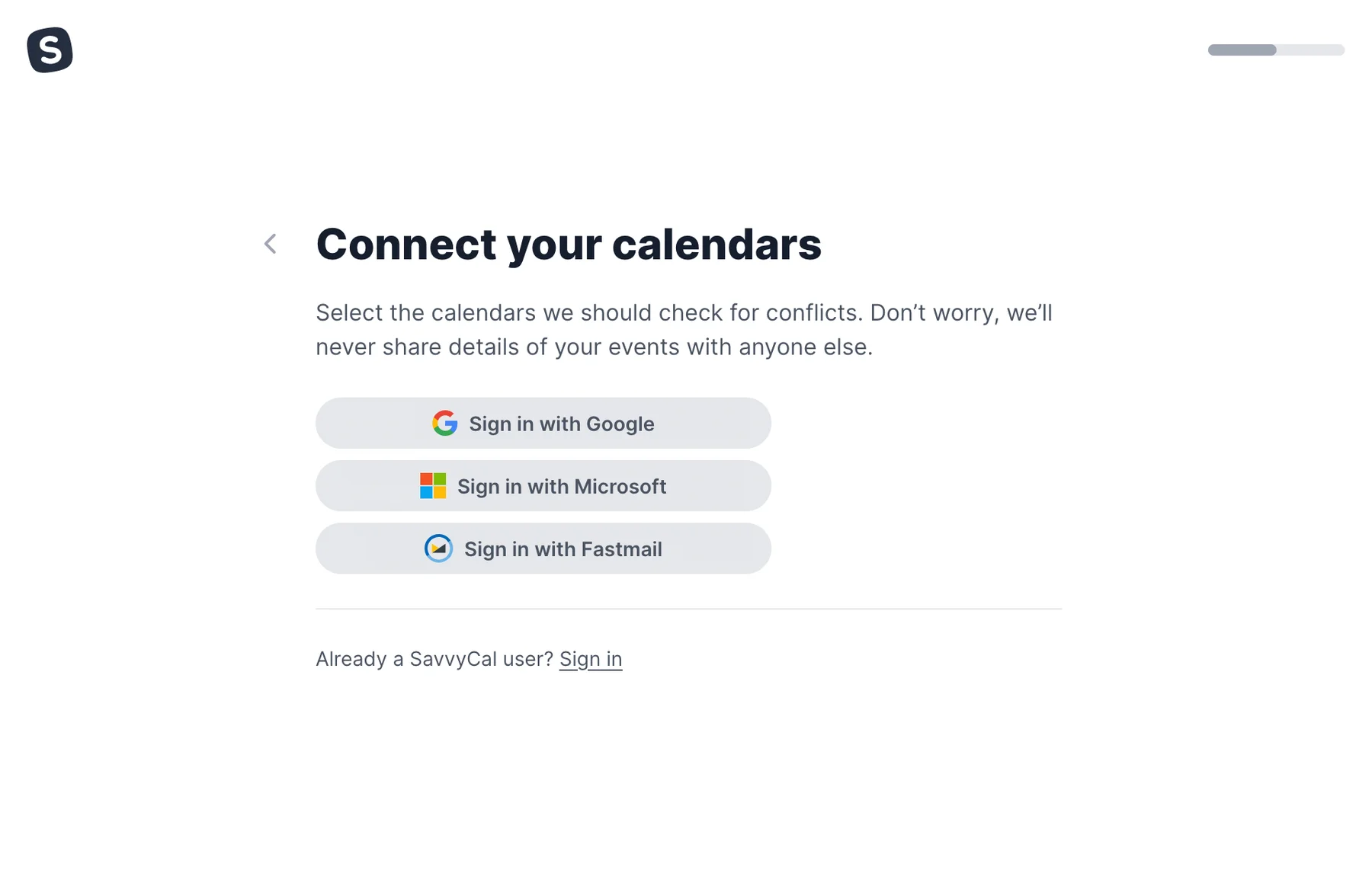
We'll walk them through a quick process to connect their calendars to SavvyCal, assuring them along the way about how availability sharing works (it's safe and can be revoked at any time).
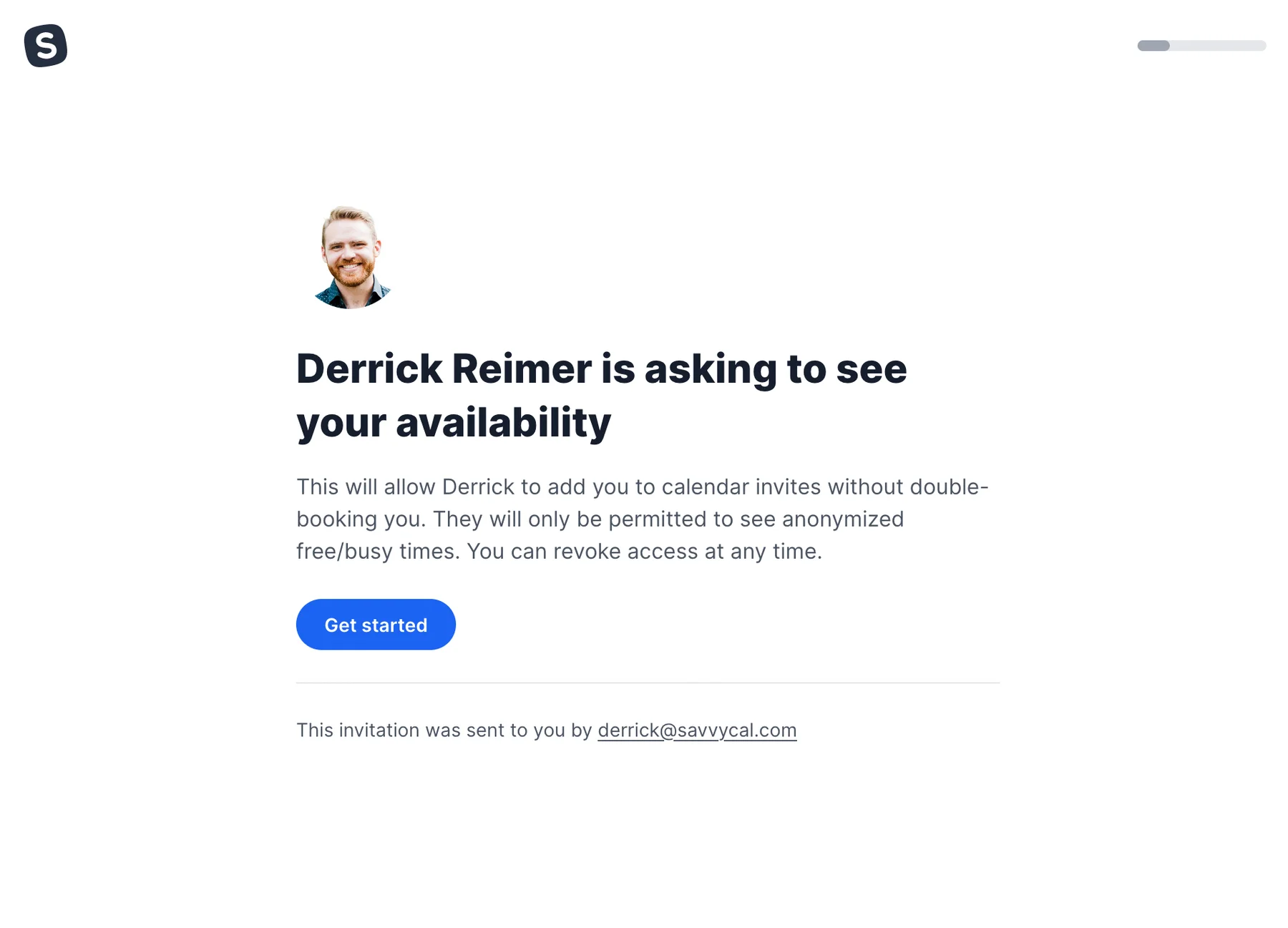
Finally, we'll confirm the permission they are granting to you.
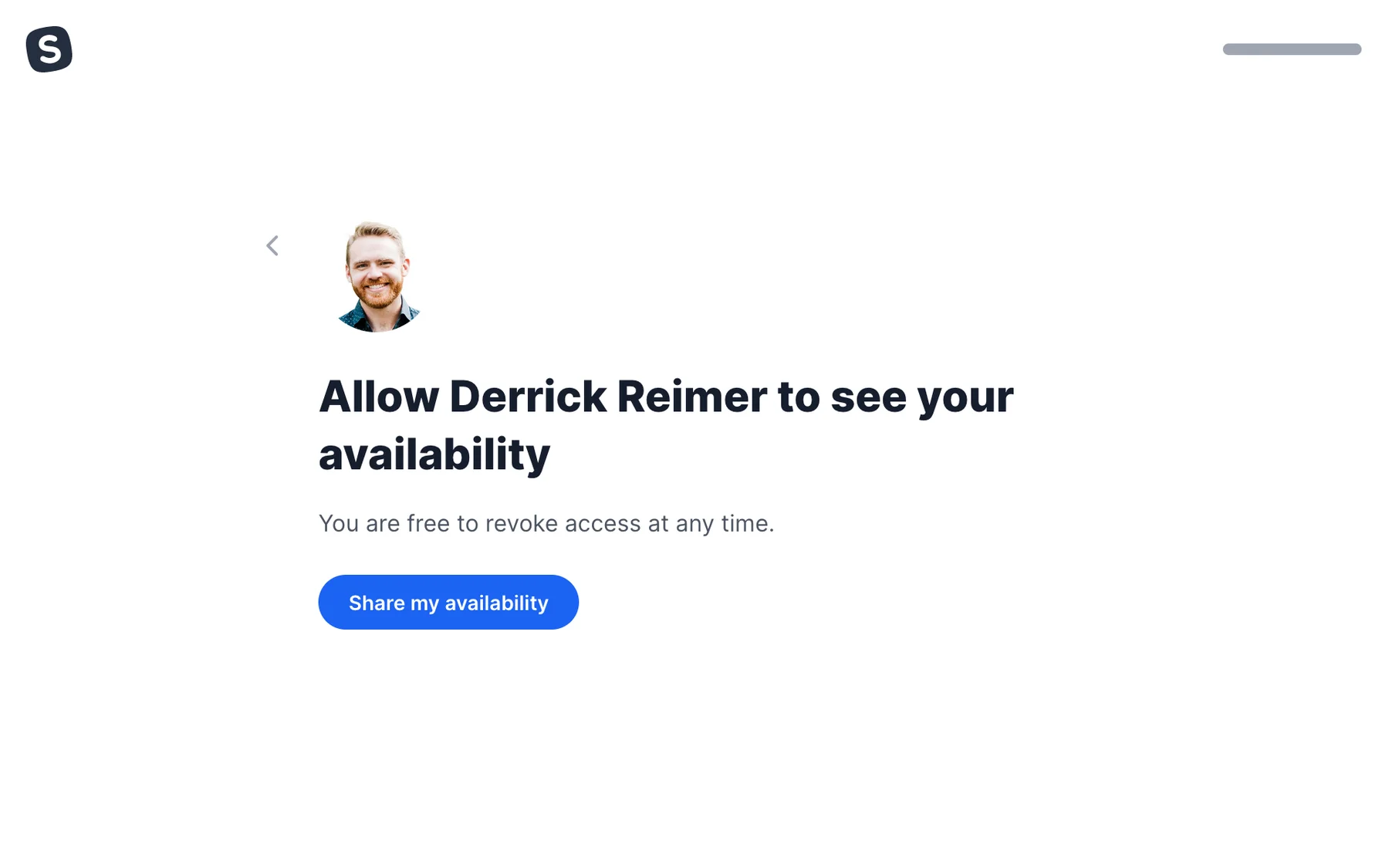
Once they share their availability, we'll send you an email notification and automatically factor in their free/busy times when you add them to links! The recipient is free to revoke share access at any time from their Contacts page in SavvyCal.
Still have a question? Contact support.