 SavvyCal Docs
Rotate meetings fairly across your team
Create a Round Robin link, add the people who take the meetings, and under Link Type set Round Robin Mode to Optimize for Evenness. SavvyCal then gives each booking to the next person in line and shows only their open times, so everyone gets the same number of turns. Round robin links are on the Basic plan, and every person in the rotation needs a paid seat.
How do I set up a rotation?
- On the Scheduling Links page, create a new link and choose Round Robin as the link type.
- Click Attendees and add the teammates who take the meetings.
- Click Link Type and choose a Round Robin Mode: Optimize for Evenness or Optimize for Availability.
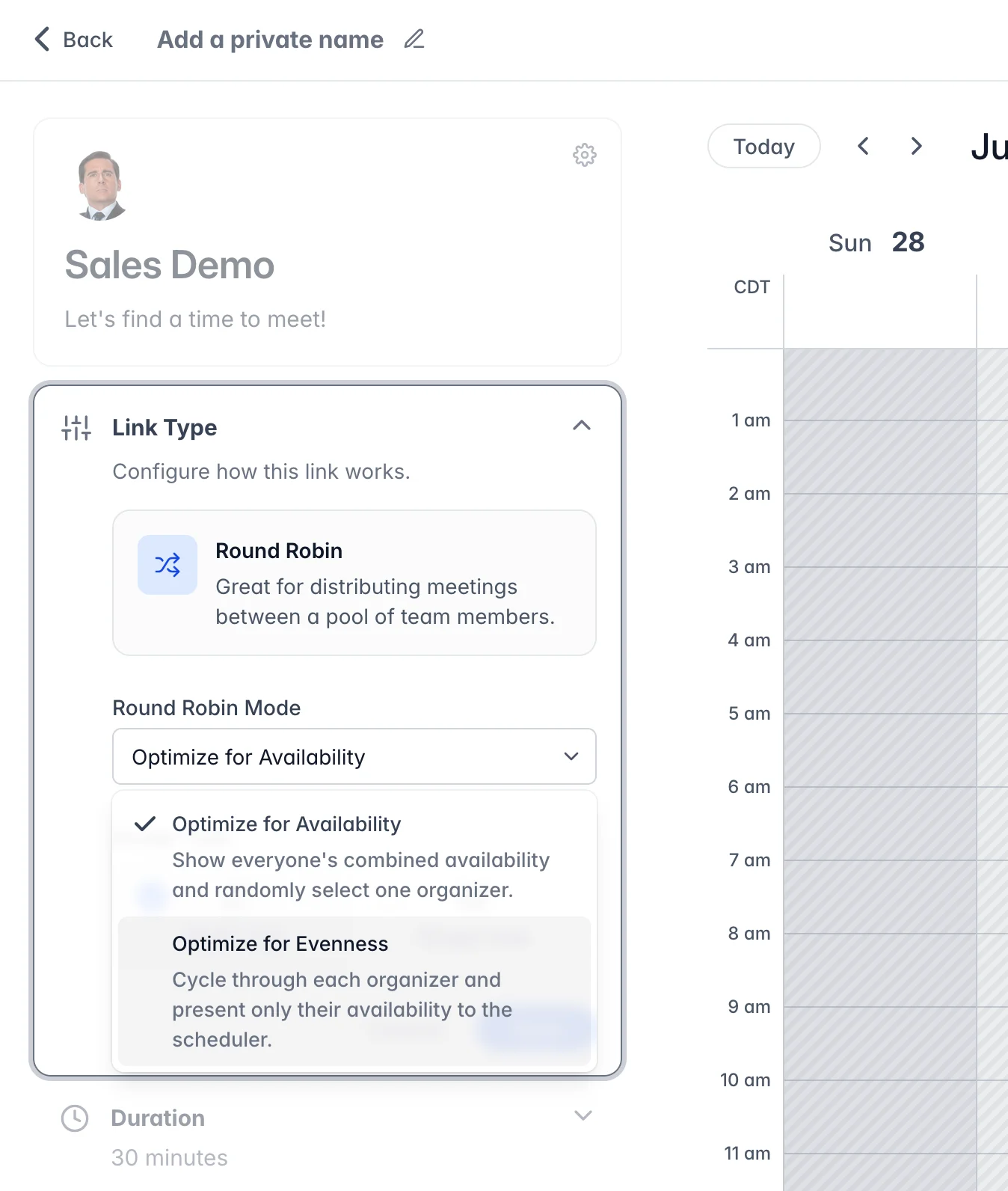
See Round robin scheduling links for each person's hours, calendar, and location on the link.
Should I optimize for evenness or availability?
| Optimize for Evenness | Optimize for Availability (default) | |
|---|---|---|
| Times shown | Only the next person's open times | Any time at least one person in the rotation is free |
| Who gets the meeting | The next person in line | The first person in line who's free at that time, by priority |
| Good for | Equal turns, even if it means fewer times to choose from | More times to choose from. Turns even out over time, but not strictly |
New round robin links start with Optimize for Availability.
How does SavvyCal decide who's next?
People take turns in the order they were added to the link. Each booking moves the turn to the person after whoever got the last meeting on the link.
Canceling a meeting doesn't change whose turn it is. Reassigning one does: SavvyCal counts the person you reassign it to as the last one to get a meeting, and if they're in the rotation, the next booking goes to the person after them.
Can some people get meetings before others?
Yes, with Priority, when the link is set to Optimize for Availability. Click a person under Attendees and pick a priority from 1 to 9. SavvyCal offers each booking to the people with the lowest number first, and only goes to the next number when none of them are free at that time. Everyone starts at 1. Optimize for Evenness ignores priorities. See Prioritizing your round robin pool.
Can I cap how many meetings each person takes?
Yes. Open the link's Availability section, turn on Limit scheduling frequency, and add a limit per day, week, or month. On a round robin link, the limit counts each person's meetings from the link separately, so a limit of 3 per day lets each person take 3. Each person's own limits under Settings > Links apply too. See Frequency limits.
Can one person join every meeting while the others rotate?
Yes. Click them under Attendees and set Round Robin Behavior to Exclude from round robin. They're invited to every meeting, and the link only shows times when they're free and someone in the rotation is free. See Excluding attendees from the round robin pool.
What if someone is out or a meeting needs a different host?
- Someone is out: block the days on their schedule with an override. See Overriding availability on a specific day. With Optimize for Availability, SavvyCal skips them while they're out. With Optimize for Evenness, the link shows only the next person's times, so when it's their turn, the link offers times after they're back.
- A booked meeting needs someone else: open the event and click Reassign. You can reassign events you manage, such as events you organize, or any event on a team's links if you're an owner or admin of that team. See How do I hand an event to a teammate?
Meetings are reassigned one at a time. There's no way to move several at once.
How do I check the split is fair?
Click Analytics in the sidebar and open the Event Activity tab. The Organizers table shows how many meetings each person was booked for, and how many were canceled. Click the link in the Scheduling Links table to see the split for that link only. See Link analytics.
What can't round robin do?
- SavvyCal doesn't route bookings to people based on answers to the booking form.
- Each link has one rotation. For a separate rotation, such as one per region, make another link.
- Each booking goes to one person in the rotation. To invite someone to every meeting, exclude them from the rotation as above.
Learn more
Still have a question? Contact support.