 SavvyCal Docs
Show your team's combined availability on one booking page
Use a round robin link to show every time when anyone on the team is free, with each booking going to one person. Use a collective link to show only the times when everyone is free, for a meeting the whole team attends. Both are on the Basic plan.
Which link do I need?
| Round robin link | Collective link | |
|---|---|---|
| Times shown | Any time at least one person is free | Only times when everyone is free |
| Who's in the meeting | One person, picked for each booking | Everyone on the link |
| Good for | Sales calls, demos, and support, where any one person can take the meeting | Panel interviews, kickoffs, and calls that need several people |
A round robin link shows the combined times only when Round Robin Mode is set to Optimize for Availability, which is the default. Optimize for Evenness shows one person's times at a time, to give everyone equal turns. See Rotate meetings fairly across your team.
How do I set up a round robin link?
- On the Scheduling Links page, create a new link and choose Round Robin as the link type.
- Click Attendees and add the teammates who take the meetings.
- Click Link Type and check that Round Robin Mode is Optimize for Availability.
Each booking goes to the first person in the rotation who's free at that time. See Round robin scheduling links.
How do I set up a collective link?
- On the Scheduling Links page, create a new link and choose One-on-One / Collective as the link type.
- Click Attendees, click Add an attendee, and choose the people who need to be there.
- Share the link. It shows only the times when you and everyone you added are free, and everyone gets the calendar invite.
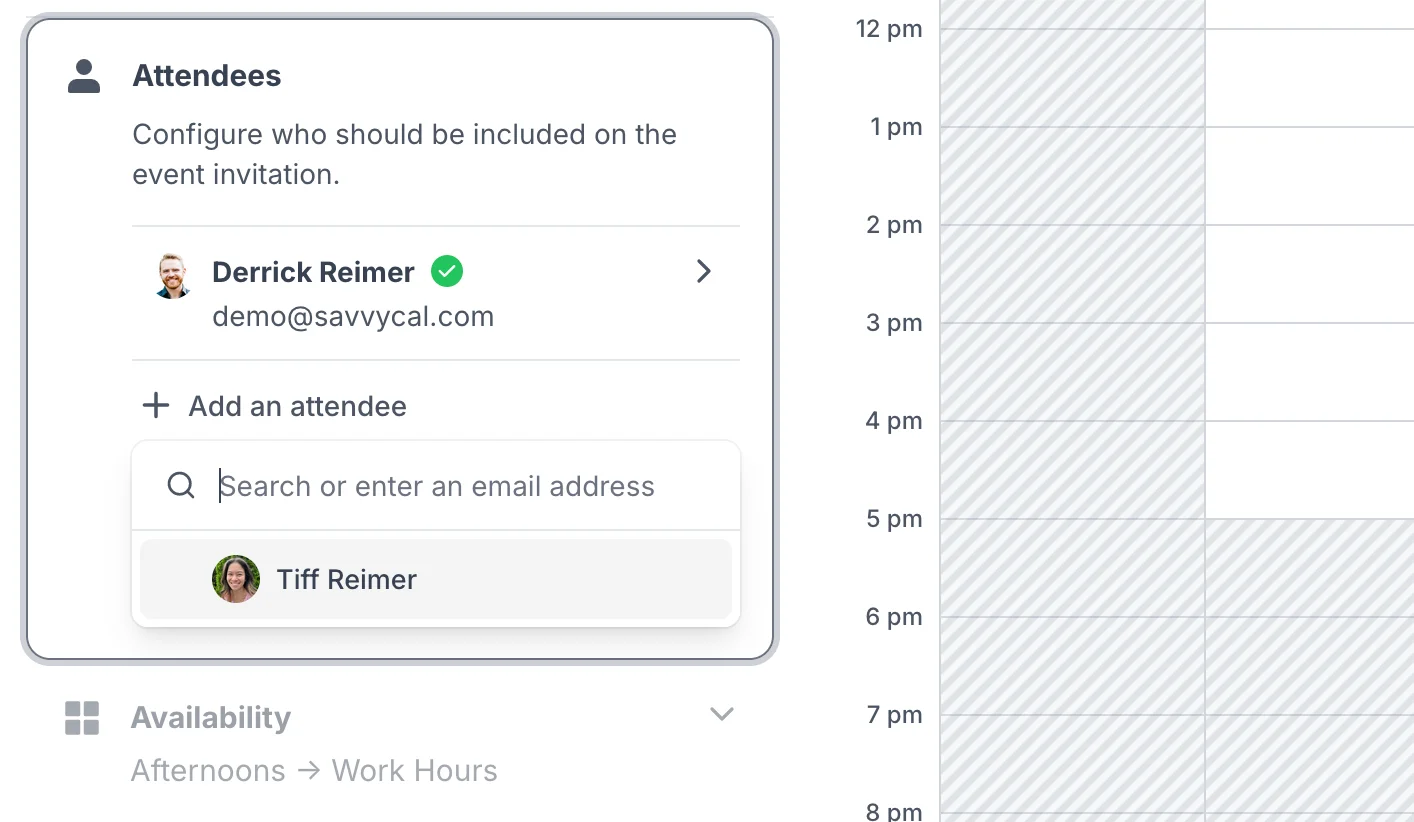
To invite someone without letting their calendar block times, click them and choose Optional. They get the invite, but the link doesn't wait for them to be free. See Collective scheduling links.
Can I put the team's links under the company name?
Yes. Create the link under a team, and it uses the team's URL, such as savvycal.com/your-team, and the team's branding instead of yours. See Setting up a team.
Does everyone need a paid seat?
Everyone in a round robin rotation needs a paid seat, and so does the organizer of each link. People who are only attendees on a collective link can use a free SavvyCal account: once they share their availability with you, their busy times block times on the link. See Sharing availability with people outside your team.
Can I include people outside my team?
Yes. Go to Contacts, click Add contact, enter their email address, and turn on Invite to share availability. Once they accept, you can add them to a collective link, and the link works around their calendar too. They don't need a paid account. See Sharing availability with people outside your team.
Learn more
Still have a question? Contact support.